> This is part 1 of 2 of the full documentation (pages 1–100 of 103).
> The content is paginated: fetch every part to see all of it.
> Next part: https://docs.avataar.ai/knowledge-center/llms-full.txt/1
> Page index: https://docs.avataar.ai/knowledge-center/llms.txt
# Knowledge Center
Create stunning and engaging 3D experiences using our 3D spatial storytelling platform.\
\
Here's everything that'll help you get started and more...
# 3D User
Avataar’s Creator platform helps users by reducing both the time and cost needed to create 3D spatial experiences.
**Benefits:**
* The traditional process of creating 3D experiences is time-consuming and expensive. It requires expertise in various 3D functions like modeling, texturing, animation and rendering along with different softwares.
* In the Creator platform, users can easily bring AI or human generated 3D objects, rooms, text, and images. It provides various smooth transitions and animations, as well as pre-fabricated blocks along with a high quality render engine ensuring amazing final outputs, all through a single platform
**Related Topics:**
* [How to use a template? ](/knowledge-center/creator/projects)
* [How to import a free 3D model?](/knowledge-center/creator/projects/object)
* [Watch Step by Step tutorial](https://youtu.be/EpAHVBViOIY)
# AI User
Generate Free 3D models by using text inputs or by uploading a single image with our generative AI features.
**Some of the use cases:**
* Product designers can use this feature to generate 3D models of new product ideas without having to learn complex 3D modeling software.
* Prototypers can use this feature to quickly generate 3D models of prototypes to test and refine their designs.
* Animators can use this feature to generate 3D models of characters and props for their animations.
* E-commerce businesses can use this feature to create 3D models of their products for product visualization on their websites and in their marketing materials.
* Augmented reality developers can use this feature to create 3D models of real-world objects that can be interacted with in augmented reality applications.
* Virtual reality developers can use this feature to create 3D models of real-world objects that can be used to create immersive virtual reality experiences.
**Related Topics:**
* [Text / Image to 3D ](/knowledge-center/creator/projects/generate-ai-3d-models)
* [Generate Free 3D models using our Incarnate Mobile App by scanning real physical object](/knowledge-center/incarnate/getting-started)
* [Watch Step by Step tutorial](https://youtu.be/EpAHVBViOIY)
# Merchandiser
Rendering 3D models on the web and in mobile apps is a powerful way to create interactive and engaging experiences for users. The Creator Platform allows users to create interactive 3D experiences for their websites and mobile apps without having to write any code.
**Use cases:**
* **Product visualisation:** E-commerce businesses can use this feature to create interactive 3D product visualisations on their websites. This can help customers to better understand and visualise products before they buy them.
* **Augmented reality:** AR developers can use this feature to create AR experiences that allow users to interact with 3D models in the real world for purposes such as gaming, education, and marketing.
**Benefits**:
* **Easy to use:** Rendering 3D models on the web and in mobile apps is typically very easy to do, even for users with no prior experience in 3D graphics.
* **Platform-independent:** 3D models rendered on the web and in mobile apps can be viewed on any device, including desktop computers, laptops, tablets, and smartphones.
* **Interactive:** Users can interact with 3D models rendered on the web and in mobile apps, such as rotating them, zooming in and out, and clicking on them to learn more information.
* **Save time and money :** Creator platform eliminates the need to hire expensive 3D artists and developers, also is currently completely free to use.
* **Improve user engagement:** 3D content is more engaging and visually appealing than traditional text and images.
* **Increase conversions:** Studies have shown that 3D content can increase conversions by up to 70%.
* **Boost your brand:** 3D content can help you to create a unique and memorable brand experience.
**Related Topics:**
* [3D / AR ](/knowledge-center/creator/projects/3d-ar)
* [Watch Step by Step tutorial](https://youtu.be/EpAHVBViOIY)
# Web Developer
Creator platform helps developers in creating web pages with animations in an efficient and enjoyable manner while being cost effective.
**Benefits**:
* **No need to know WebGL or 3js:** Developers can create webpages with animation without having to learn complex JavaScript libraries.
* **Easy to use:** Single-tool webpage creation platforms with animation are typically designed to be easy to use, even for developers with no prior experience in animation.
* **Powerful features:** Single-tool webpage creation platforms with animation often offer a wide range of powerful features, such as pre-made assets, templates, and customizable effects.
* **Flexible output:** Developers can export their 3D web content in an SDK format that is easy to integrate with any webpage.
**Related Topics:**
* [Export Web Package](/knowledge-center/creator/projects/export)
* [Developer Documents](/knowledge-center/developer-documentation/how-to-integrate-avataar-experiences)
* [Watch Step by step Tutorial](https://youtu.be/EpAHVBViOIY)
# Creator Home Page
* Templates : Pre-populated templates for you to view or edit.
* My Projects : All projects created by you are housed in this section.
* New Projects : You can create a new project by clicking on this button. [*Read more*](/knowledge-center/creator/projects)
Users can filter projects based on filters like video, 3D Webpage, 3D/AR View.
# Canvas / Workspace
Workspace for 3D Webpage Projects
Workspace for Video Projects
Workspace for 3D/AR View Projects
* **Project Name and Category** : Rename your project / Change the category of the project.
* **Object** : Upload a 3D model to your workspace or import from the pre-existing library. [Read More](/knowledge-center/creator/projects/object)
* **Scene :** Upload a 3D Room to your workspace or import from the pre existing library. [Read More](/knowledge-center/creator/projects/scene)
* **Image :** Upload a 2D Image to your workspace in .png / .jpg or .jpeg format. [Read More](/knowledge-center/creator/projects/image)
* **Video:** Upload a Video to your workspace in .mp4 /.webm format. [Read More](/knowledge-center/creator/projects/video)
* **Audio :** Upload an audio file to use in your experience in .mp3 / .wav format. [Read More](/knowledge-center/creator/projects/audio)
* **HDRI :** Upload an HDRI or use one from the pre-existing library. [Read More](/knowledge-center/creator/projects/hdri)
* **Light :** Add one or multiple light sources to your experience based on your requirements.[Read More](/knowledge-center/creator/projects/light)
* **Text :** Add Texts to your experience whenever necessary. [Read More](/knowledge-center/creator/projects/text)
* **Quick Access Tool :** Use Quick Access Tool to edit, preview, and save your project. Additionally, you can show/hide the grid and full-screen mode. [Read More](/knowledge-center/creator/projects/how-to-use-the-quick-access-tools)
* **Animation Timeline :** Build frame by frame animations / interactions for your project. [Read More](/knowledge-center/creator/projects/animation-timeline)
* **Viewport** **:** Adjust background color, display size and shadow settings. [Read More](/knowledge-center/creator/projects/view-port-settings)
* **Export** : Export an image, webpage or a video once your project is ready. [Read More](/knowledge-center/creator/projects/export)
* **3D / AR :** Enable the 3D / AR viewer using this option to see the 3D model in Avataar’s renderer with available interactions (if any). [*Read more*](/knowledge-center/creator/projects/3d-ar)
# Export
**Export** : Find export options for your project here.
* **Image:** This option allows you to export the 3D scene as a still image in a format like PNG.
Post clicking edit mode on the quick access toolbar, click on export and then ‘Image’ option.
A new screen will open up on the same tab where you can view the capture button at the bottom, click on it and an image will be downloaded to your device.
* **Video:** Export high-quality videos after adjusting the frame rate and animation speed.
* **Webpage Integration:** Export integration packages for websites. [*Read more*](/knowledge-center/creator/projects/export)
# Getting Started
{% embed url="" %}
Avataar's Creator is a web application that lets users build 3D storytelling videos, 3D scrollable web pages and 3D/AR configuration links.
It enables users to experiment with product placement, explore various combinations, and achieve highly realistic visuals using advanced 3D rendering technology.
# Sign Up
Ready to signup to Avataar's Creator? Here are different ways -
### [Using Google](/knowledge-center/creator/getting-started/sign-up/how-to-sign-up-using-gmail)
### [Using Apple ID](/knowledge-center/creator/getting-started/sign-up/how-to-sign-up-using-apple-id)
### [Using Email](/knowledge-center/creator/getting-started/sign-up/how-to-sign-up-using-email)
{% embed url="" %}
# How to Sign up Using Gmail?
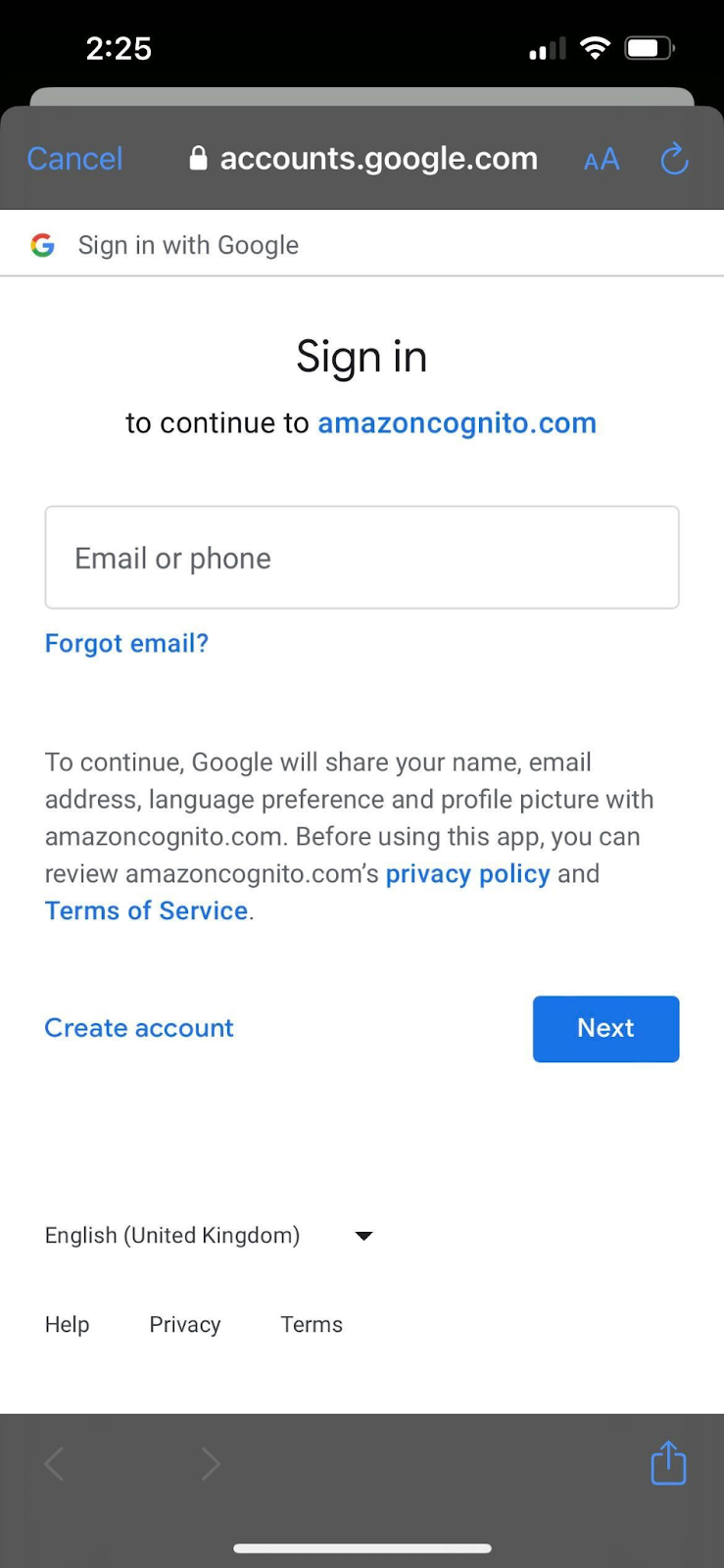
To sign up on Creator with your Gmail, open and click on the ‘Continue with Google’ option.
You will be redirected to your Gmail account where you need to login using your email ID and password.
Once you've Signed up successfully, enter a username and answer some basic questions to help us understand you better.\
\
Click on the 'Get Started' button and you're all set to start!
# How to Sign up Using Apple Id?
To sign up on Creator with your Apple ID, open and click on the ‘Continue with Apple’ option.
You will get a pop-up with a confirmation from[^1] Apple asking for consent on using your Apple ID.
(Please make sure to select the “Share my Email” option on the screen popup while logging in for the first time)
Once you click on 'Continue', you will be taken back to the app and logged in successfully. \
\
Once you've Signed up successfully, enter a username and answer some basic questions to help us understand you better.
Click on the 'Get Started' button and you're all set!
[^1]:
# How to Sign up Using Email?
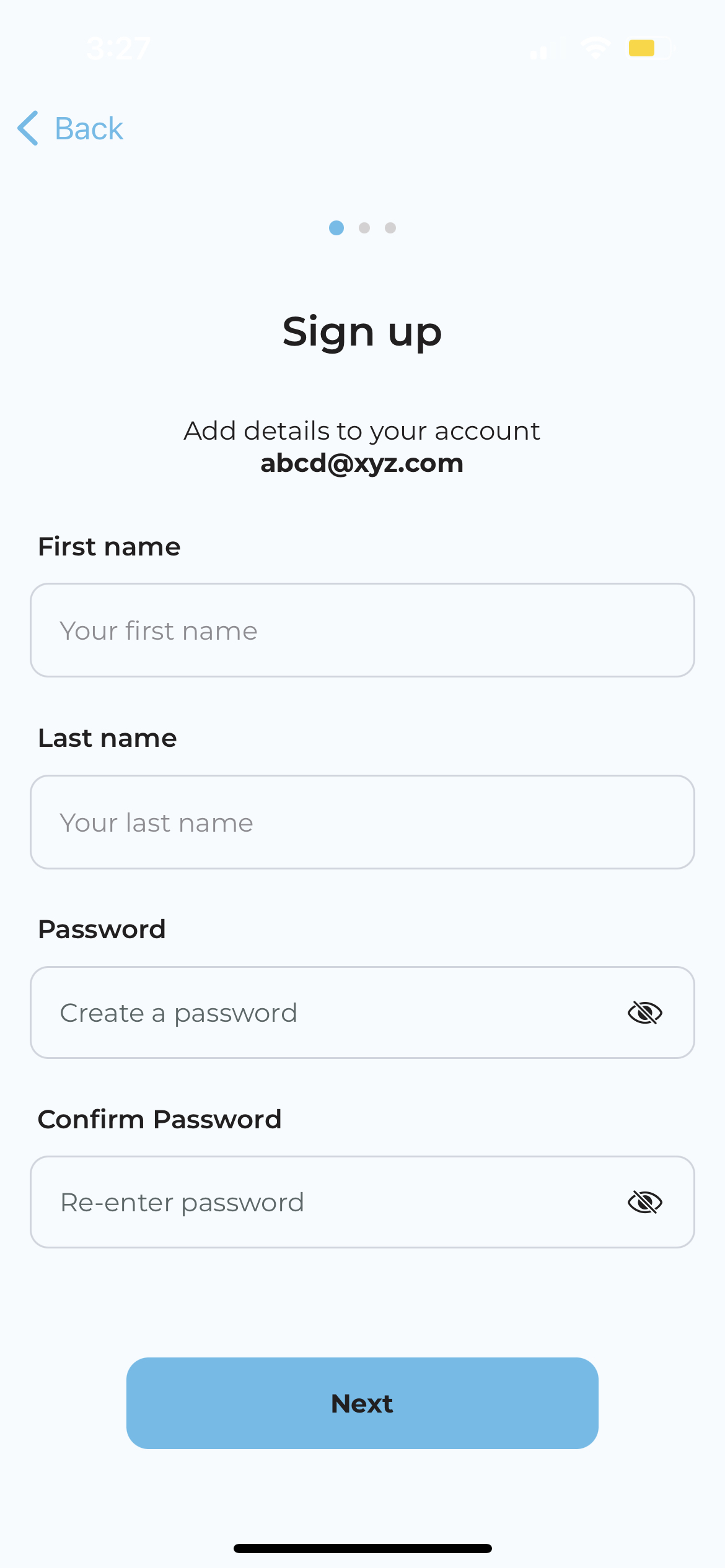
To sign up on Creator with your Email id, open and put your email id in the ‘Login with Email’ option.
A one-time password verification will be sent to your email after filling the basic details. Now enter the verification code.\
\
Once you've Signed up successfully, enter a username and answer some basic questions to help us understand you better.
Click on the 'Get Started' button and you're all set, start crafting!\
# Creator Navigation
### [Projects](https://app.gitbook.com/o/sPV1ARINIQaBTonOfTs5/s/smamD3Fv8IJja0xSi74y/~/changes/27/creator/projects)
The "Projects" tab within the Creator empowers users to create new projects, edit existing templates and explore the image to 3D (GenAI) feature. Under experiences you can also explore your previously created projects and explore some preset templates. To know more about ‘Projects’, click [here](https://docs.avataar.ai/product-documentation/creator/experiences).
### [Assets](/knowledge-center/creator/assets)
Assets tab serves as a cms tool for catalog management (enterprise users only) and exploring the output from image to 3D feature (for guest & enterprise users both). It acts as a repository, allowing enterprise users to view the assets that have been ingested into the platform with an additional capability to review the output. To know more about ‘Assets’, click [here](https://docs.avataar.ai/product-documentation/creator/community).
### [**Community Showcase**](#community-showcase)
1. Storytelling-web scroll - Scrollable Web Page Created through Creator
2. Storytelling-video - Product Explainer Videos Created through Creator
3. 3D/AR - 3D/AR configuration links
4. Video to 3D (NeRF) - Output from Incarnate by Avataar app
5. Text/Image to 3D - Output from Text/Image to 3D feature
The Community Showcase tab helps you to explore the creations of the other users. By visiting this section you can find inspiration and ideas about the expanse of content that can be generated through Avataar’s offerings. \
\
Feel free to like and share your experiences across social media platforms such as Twitter, LinkedIn, and Facebook. Additionally, you have the option to copy and share the experience URL, allowing others to view it without the need to log in to the platform.
To know more about ‘Community Showcase’ tab, click [here](https://docs.avataar.ai/product-documentation/creator/community).
### [Upload your Catalog](/knowledge-center/creator/upload-your-catalog)
The "Upload your Catalog" feature is available for enterprise users only. This helps users to ingest their product catalog onto the platform by uploading an .xlsx file. Users can download the template from the same tab and fill up the required details before uploading. To know about the detailed process click [here](https://docs.avataar.ai/product-documentation/creator/catalog-ingestion).
Note - This option is not available for the guest users.
### [**User Management**](/knowledge-center/creator/user-management)
This feature is available for enterprise users only. Here users can add team members for collaboration and manage their access. To know more about the features under ‘User Management’ click [here](https://docs.avataar.ai/product-documentation/creator/user-management)
Note - This option is not available for the guest users.
### [**My Profile**](/knowledge-center/creator/my-profile)
Within this section, you can explore information about the platform, seek assistance and log out when needed. To know more click [here](https://docs.avataar.ai/product-documentation/creator/my-profile)
{% embed url="" %}
# Projects
The "Projects" tab within the Creator empowers users to create new projects, edit existing templates and explore the image to 3D (GenAI) feature. Under experiences you can also explore your previously created projects and explore some preset templates.
{% embed url="" %}
### Templates
On the initial landing page, you'll find a selection of templates created by Avataar for reference and inspiration. These experiences serve as examples of the platform's capabilities, offering valuable insights and creative ideas.\
\
You can duplicate an experience and start creating. Video & webpage projects can be copied both as video and webpage projects separately. 3D/AR projects can be copied as 3D/AR projects only.
### My Projects
The ‘My Project’ section gives you easy access to your previous & ongoing projects. The ‘All’ option will open up all the projects and you can also find the projects as per category.
If you are a first-time user, the page will be blank until you have an existing project that’s completed or a work in progress. \
\
You can duplicate an experience and start creating. Video & webpage projects can be copied both as video and webpage projects separately. 3D/AR projects can be copied as 3D/AR projects only.
### New Project
To initiate a new project, please click on the 'New Project' button located at the top right corner of the page. This option will direct you to a new screen where you can explore all the functionalities needed to build various experiences. To know more about these functionalities click here.
### Delete Project
You can also delete any unwanted project by clicking on the bottom right corner of projects.
### Edit Thumbnail
You can also edit the thumbnail of a project by clicking vertical triple dots at the bottom right corner of projects.\
# How to use the Quick Access Tools?
The quick access tools are located at the top of the workspace and comprises of icons, each serving a specific function:\
## Edit Mode
It enables users to transform objects by activating different tools with color-coded axes:
M: This hotkey activates the move tool and allows users to move objects along the x, y, and z axes.
R: This hotkey activates the rotate tool and allows users to rotate objects along the x, y, and z axes.
S: This hotkey activates the scale tool and allows users to scale objects along the x, y, and z axes.
## Play Mode
It provides an option for the users to watch a quick preview of the storytelling experience which is in making, to understand the changes required, if any.
## Fullscreen Icon
The Fullscreen icon hides the user interface, maximizing the 3D scene within the browser for an immersive experience.
## Show Preview
While you're in edit mode you can preview everything that will be rendered in Play mode.
## Look Through Camera
Look Through Camera" enables users to align the viewport camera exactly as it appears through the render camera in the scene. The shortcut is “C.
## Grid Icon
The Grid icon toggles the visibility of the grid.
## Undo Redo
You can undo redo light, text & keyframe actions on the workspace. Windows Shortcut (undo, redo) - Ctrl+z , Ctrl+y Mac Shortcut (undo, redo) - Command+z, Command+Shift+z
{% embed url="" %}
# View Port Settings
Under Viewport settings, you will be able to adjust the below things -
* **Background Color :** Choose a suitable background color from the panel or using a color code.
* **Display Size :** Adjust the display size of your experience from the drop down menu.
* **Shadow Catcher :** Cast shadow using this option, you can change the color & opacity of the shadow under this option.
## Lock Element
The Lock Functionality in the Composition Panel and Timeline allows users to prevent accidental edits by locking elements, hiding their gizmos, and restricting property or animation changes. You can also use the key 'L' on your keyboard to lock/unlock.
# Generate AI 3D Models
The Generate 3D Models allows you to generate 3D models with generative Ai using a Text Prompt or Image as inputs.
### **Give a text prompt**
You can enter the name of your desired object in text form in the text box to generate the 3D model of the object. E.g. Brown 2-seater sofa
### **Upload an Image**
The 'Image to 3D' option enables users to create their own 3D models by uploading a single image of any product. To use this feature, simply click on the option and upload a clear image of the product in either .png, .jpeg or .heic format to generate the corresponding 3D model.
All the outputs created through the Text/Image to 3D option are accessible under the 'Previously Uploaded' tab, along with those currently under processing.
### Previously Uploaded
* Upload an image with a white background
* Upload a front-facing image of the object keeping the camera at 90 degree
To get the best output through this option, please ensure that -
Important :
To open a completed model in the experience creator, simply click on it.
* **Processing**
* **Completed**\
# Object
An object serves as a crucial reference point for a '3D model,' acting as the cornerstone in the process of crafting an immersive experience.
{% embed url="" %}
## My Objects
Here you can find the objects that are uploaded by you or your team. Here you’ll find 3 types of objects: Neural Objects captured from “Incarnate by Avataar” App, 3D Meshes are 3D models uploaded by you and your team and AI generated objects are the ones generated using Generative AI.
## **Object Library**
Here you can find the objects that are provided by Avataar as Presets. Presets will contain three types of objects from Avataar Neural Objects captured from Incarnate by Avataar App, 3D Meshes are 3D models uploaded by the Avataar Team and AI generated are the ones generated using Generative AI.
## Import Object
You can find the ‘Import Object’ option under ‘Object’ at the top left corner of the screen if you click on New Project or open an existing project. Using this option you can add an SKU to your experience by clicking on an SKU or using the search bar.
## Upload Object
The "Upload 3D Model" option allows users to add their own 3D models with textures to the catalog. You can use GLB format for 3D models with textures. This section also allows to set up a 3D/AR experience. [Read more](#upload-object)
## Replace Object
When replacing any object within a project, you will be prompted to choose whether the new object should be resized to match the size of the old object.
* If you select the "Don’t resize" option, the new object will replace the old object with its original size.
* If you select the "Resize & Fit" option, the feature will resize the new object to match the size of the old object While maintaining the original aspect ratio of the new object.
## **Animation Block**
You can add a pre-existing animation to the added object using the animation block. Rotate, Focus and Scale are a few of the animation blocks available for Objects..\
\
**Note :** *To delete, hide or duplicate an object just right click on the object. Now you can add multiple 3D models to the experience.*\
\
*You can search 3D Models from the pre-existing library with the GLB name. Also, you can filter them by product categories and types (AI generated / 3D Mesh / Neural Renders).*
*You can add pre-existing animations to your object by clicking on the object. The option appears under ‘Settings’ in the right panel.*
*If you are using a neural render, you can also remove the noise wIthin a scale of 0-1 or using Crop. Additionally, there is an option to adjust color (exposure and contrast) for these kinds of objects.*
###
# Upload Object
The "Upload 3D Model" option allows users to add their own 3D models with textures to the catalog. You can use GLB & USDZ format for 3D models and PNG/JPEG format for textures. This section also allows to set up a 3D/AR experience.
* Click on the ‘Upload’ button and upload the file(s) from your system.
This will upload the selected files and bring up the panel that helps you to check a quick preview of the model before finishing the upload. You can update the Product Information before uploading.\
\
The Product Information is automatically populated based on the uploaded file's name. Feel free to modify it according to your requirements. Here’s a brief note about the fields under product information -
#### Product Name
The product name is like a special label that helps tell one product apart from another. It's usually shown in catalogs, online shops, and lists of products. For example, you might see names like "XYZ Smartphone 2000" or "ABC Premium Laptop." By default, the product name will be the same as the .glb file you upload.
#### Product SKU ID
The SKU (Stock Keeping Unit) ID is a unique alphanumeric code assigned to each product to track inventory and sales. It can include numbers, letters, or a combination of both. For example, "SKU12345" or "ABC001." The auto-populated product SKU ID will be system generated, you can change it if you'd like.
**Product Category**
This field refers to the classification or the grouping to which the specific product belongs based on its characteristics, features, or intended use. E.g. consumer electronics, furniture, toys, home decor, etc. The product category will be automatically set to 'Others'. Please feel free to select a more suitable option from the drop-down menu if needed.
**Product Sub-category**
This field refers to a further classification of the product within a broader category. E.g. furniture category may include sofas, tables, chairs, beds, etc. as subcategories. The product sub - category will also be automatically set to 'Others'. Please feel free to select a more suitable option from the drop-down menu if needed.\
\
**Formats Supported**
GLB (GLTF Binary) is a file format used for 3D models and scenes in AR and VR applications. It is based on the glTF standard and offers compactness, complete 3D scene representation, real-time rendering with PBR, and interoperability across platforms.
\
\
# Transform
### What is a pivot?
A pivot is a reference point around which transformations such as rotation and scaling occur. In the context of a 3D model, the pivot determines the center of these transformations.
### Pivot settings
#### Edit Pivot
With this you can edit the pivot point of a 3D model involving changing the position of the pivot point to better suit specific transformation needs, such as rotation, scaling, or translation. This can be particularly useful in various modeling and animation scenarios where precise control over the model's behavior is required. You can use the shortcut (ctrl +.) to edit a pivot point.
#### Why Edit the Pivot Point?
* **Enhanced Control:** Placing the pivot point at a strategic location gives you better control over how the model rotates, scales, or moves.
* **Accurate Transformations:** For certain models, the default pivot point may not be ideal for the intended transformations. Editing the pivot ensures that transformations are accurate and aligned with the desired reference point.
* **Animation Needs:** In animations, the pivot point often needs to be at specific locations to achieve realistic motion. For example, the pivot for a door model should be at the hinges to simulate opening and closing accurately.
#### Reset Pivot for all nodes
Imagine you're working on a 3D model, like a robot or a car. Each part of your model (like the robot's arms, legs, or the car's wheels) has a special point called a "pivot." This pivot point is where the part turns around, gets bigger or smaller, or moves from.\
\
Resetting pivot resets the edited pivots back to the baked in pivots that are uploaded with the Objects.\
\
**Why Reset the Pivot for All Parts?**
Make Transformations Easier: When all parts have their pivots in the same kind of place (usually the middle), it’s difficult to animate the object.\
\
If you moved the pivots by accident or they got messed up, resetting them fixes that.\
\
**Note:** You can use the save pivot to my objects option to save the pivot on object level.
# Node Hierarchy
This feature empowers you to bring your webpages and videos to life with precise animation control over individual parts of your 3D objects.
**Node Selection:** Select a node from the left panel by clicking on the arrow and expanding all the nodes.\
\
**Animate on Timeline-** Using this option you can add the node to the animation timeline to animate them to create interactions.\
\
You can directly manipulate position, rotation, scale, opacity, and materials of specific object parts (nodes) using the timeline.\
\
Note: To reassemble, rename, hide/unhide click on the three dots.\
# Material Change
This feature allows you to create dynamic animations by changing material properties on objects over time.
**Material Settings:**
### Add Material
Click on the "New Material" option to add a material and define material properties:
These properties will include:
* **Material Type:** Choose the type of material you want to create, such as standard, metallic, or glass.
* **Map Type Selection:** Select the map type that defines how the texture information is applied to the object's surface. Common map types include diffuse (base color), normal (surface details), and roughness (specular reflections).
* **Object-Level Materials:** Materials are associated with individual objects. When you import an object, its materials are included and accessible in the object's properties section.
### **Material Selection**
The properties section provides options to select or deselect materials for each object. Only selected materials will appear on the animation timeline for keyframe editing.
### Animating Material
* Once a material is selected on the object, you can access its properties on the animation timeline.
* By adjusting these properties over time and setting keyframes, you can create animations that change the material's appearance throughout your video or web page project.
### Preserve UV
The "Preserve UV" feature helps you maintain consistent textures across your 3D object, even when it's broken down into separate nodes. This is particularly useful for complex meshes with intricate details.
**What are UVs?**
Imagine unwrapping a 3D object like a box and laying it flat. This flat layout is called a UV map. It defines how a 2D texture image (like a photo) is applied to the 3D object's surface.
**How Preserve UV Works?**
Enabling "Preserve UV" ensures that when you modify the mesh of a node, its associated UV map is automatically updated. This maintains a consistent and accurate texture application across all connected nodes, even if their meshes are separate.
**Benefits of Preserve UV:**
Accurate Textures: Ensures textures remain properly aligned and avoid stretching or warping.
Streamlined Workflow: Saves time by automatically adjusting UV maps during edits, eliminating the need for manual correction.
Improved Visual Quality: Creates a visually cohesive and realistic appearance for your 3D object.
You don’t have to worry which material/texture is on which node.
# Scene
The term 'scene' encompasses the backdrop and environment that surrounds the object. It plays a pivotal role in enhancing the overall aesthetic appeal and immersive quality of the experience.\
\
Note : To delete, hide or replace the scene just right click on the scene.
{% embed url="" %}
## My Scene
Here you can find all the 3D Scenes that were added by you or your team using the 'Upload Scene' option in the creator under Scene.
## Scene Library
Here you can find the Preset Scenes provided by Avataar which you can use to create the experiences.
## Import Scene
With this option, you can enhance your experience by adding an environment a Scene from the Presets or previously uploaded by you or your team.
## Upload Scene
You can use this section to upload any 3D scene in .glb format to use in the experience and achieve your desired output.
## Scene Settings
In the right hand panel you’ll see the settings when a scene is selected that will allow you to adjust the position, rotation, and scale of the scene. These settings significantly influence the overall layout and presentation of the 3D environment.
# Image
This option is used to add a 2D image to the 3D scene and gives additional choices to the user to be flexible about creating experiences.
### Upload Image
You can upload Images in .png and .jpeg formats from your device using the Upload Image option.
### Generate Image
To generate an image using Text as input click on the Generate Image option.
#### **Prompt**
In the "Prompt" section, enter a detailed description of the image you want to generate. The more specific you are, the better the AI can translate your words into a visual.
#### **Style**
Select the desired visual style for your image from the following options:
\
**Photography:** For realistic images that resemble photographs.
**Filmic:** Create images with a cinematic feel, like scenes from a movie.
**Painting:** Generate images in the style of traditional paintings.
**3D Render:** Produce three-dimensional computer-generated images.
**Cartoon:** Bring your vision to life in a cartoon style.
**Illustration:** Get creative with illustrated images.
#### **Aspect Ratio**
Select an aspect ratio that best suits your needs:
* **Square (1:1):** Perfect for social media posts or profile pictures (1024 x 1024 pixels).
* **Portrait (2:3):** Ideal for portraits or images with a focus on height (768 x 1152 pixels).
* **Wide Screen (16:9):** Great for landscape scenes or panoramic views (1173 x 640 pixels).
* **Landscape (3:2):** Well-suited for showcasing vast landscapes or horizontal elements (1152 x 768 pixels).
Generate Image button will allow you to watch your vision come to life!
{% embed url="" %}
# Video
This option is used to add a Video to the 3D scene and gives additional choices to the user to be flexible about creating experiences. You can upload a video by clicking on the plus next to the Video on the Composition Panel.
## Video Settings
To change the video settings, volume of the video and transparency refer to the properties panel\
Note: To duplicate, hide, fit to view, replace or delete a Video just click on the three dots.
{% embed url="" %}
# Audio
With this option you can enhance your experiences by adding audios to it. Audios are linked to user interactions, making the experience more dynamic and responsive.
## Audio Settings
To change the audio settings and volume of the audio refer to the right panel while audio is selected in the left panel.\
\
**Note :** To delete, replace or duplicate an audio just right click on the audio.\
{% embed url="" %}
# HDRI
Using this section you can enhance your experience by incorporating a High Dynamic Range (HDR) image through the 'HDRI Library' or ‘My HDRIs’ section.
## HDRI Library
Here you can find the Preset HDRIs provided by Avataar which you can use to your experience
## My HDRIs
Here you can find the HDRIs uploaded by you or your team using the Upload HDRI option under My HDRIs
## Import HDRI
You can enhance your experience by incorporating a High Dynamic Range (HDR) image through the 'Select HDRI' selection. This feature allows you to seamlessly add a prefabricated HDRI from the Presents or HDRIs uploaded by you or your team.
## Upload HDRI
You can also upload a custom High Dynamic Range (HDR) image to achieve desired lighting effects and atmosphere by clicking on the upload button next to the label “Upload HDRI”.\
### HDRI Settings
Under HDRI settings you’ll be to adjust the following:
#### Exposure
This allows you to increase or decrease the HDRI’s exposure to meet your creative goals.
#### Rotation
This will allow you to spin the HDRI around its horizontal (X) and vertical (Y). You’ll be able to achieve the desired lighting effects
# Light
With this option users have the flexibility to enhance the scene's lighting by adding lights by clicking on the ‘plus’ button and adding a light.\
\
\
Four types of lights can be introduced into the scene by using the drop-down in the right-hand side panel:
## Ambient Light
Adds an ambient light source to the scene.
### Intensity
You can fine-tune the light intensity using this feature in the scene.
### Light Color
You can use this feature to change the color of the light.
### Cast shadows
This button enables you to cast a shadow of the object in the scene.\
## Directional Light
Adds an area light source with adjustable positions in the x, y, and z directions.
### Position
You can use this feature to change the position of the light source in the scene to suit your requirements and visualization.
### Target
You can utilize the target coordinates on the X, Y, and Z axes to rotate the directional light and direct its focus onto a 3D object.
### Intensity
You can fine-tune the light intensity using this feature in the scene.
### Light Color
You can use this feature to change the color of the light.
### Cast shadows
This button enables you to cast a shadow of the object in the scene.\
## Spot Light
Adds a spotlight source with adjustable positions in the x, y, and z directions.
### Position
You can use this feature to change the position of the light source in the scene to suit your requirements and visualization.
### Target
You can utilize the target coordinates on the X, Y, and Z axes to rotate the directional light and direct its focus onto a 3D object.
### Intensity
You can fine-tune the light intensity using this feature in the scene.
### Angle
You can change the angle of the spotlight using this option to suit your requirements and visualization.
### Distance
You can change the distance of the light using this option to suit your requirements and visualization. Adjust the distance effortlessly using the slider.
### Decay
You can utilize this option to apply decay to the added light, tailoring it to your specific needs to enhance the realism of your experience. Adjust the decay level effortlessly using the provided slider, with a range spanning from 0 to 5.
### Light Color
You can use this feature to change the color of the light.
### Cast shadows
This button enables you to cast a shadow of the object in the scene.
## Point Light
Adds a point light source which scatters the light toward all the directions with adjustable positions in the x, y and z directions.
### Position
You can use this feature to change the position of the light source in the scene to suit your requirements and visualization.
### Intensity
You can fine-tune the light intensity using this feature in the scene.
### Distance
You can change the distance of the light using this option to suit your requirements and visualization. Adjust the distance effortlessly using the slider, with a range spanning from 0 to 5.
### Decay
You can utilize this option to apply decay to the added light, tailoring it to your specific needs to enhance the realism of your experience. Adjust the decay level effortlessly using the provided slider, with a range spanning from 0 to 5..
### Color
You can use this feature to change the color of the light.
### Cast shadows
This button enables you to cast a shadow of the object in the scene.\
### Animating Lights
This feature empowers you to bring your webpages and videos to life with precise animation control over lights using the animation timeline:\
\
**Ambient Light:** Modify the overall lighting mood by adjusting its Color and Intensity.
**Directional Light:** Simulate natural or artificial directional lighting by controlling its Color, Intensity, Position, and Target.
**Spot Light:** Focus illumination on specific areas with controls for Color, Intensity, Position, and Target.
**Point Light:** Add localized light sources with properties for Position, Intensity, and Color.\
# Text
With this option, you can easily include textual content in their 3D scenes, making it possible to enhance the scope of branding. The text elements are also three dimensional in nature and can be customized in terms of font style, size, color, and position, enhancing the storytelling and interactive aspects of the scene.\
\
By default ‘Add Text’ will be added as soon as you click on this option. To adjust text settings please use the right panel while the particular text is selected.
Text : Write the intended text under this text box to have the same reflected in your experience.
{% embed url="" %}
## Text Settings
### Font Style
You can use this option to pick the font style of your choice.
### Font size
You can use this option to change the font size.
### Custom Fonts
To add a custom font go to interaction and click on add text. Once the text appears on the screen click on settings and then on upload font button. You can upload fonts in .ttf, .otf, and .woff format.
### Text Color
You can use this option to change the font color, fill color, fill opacity, stroke color, stroke opacity and stroke width.
### Line Height
Control the vertical space between lines of text.
### Letter Spacing
Adjust the horizontal space between letters.
### Alignment
Implement options for left, right and center alignment.
### Case
This refers to different options for controlling the capitalization of text.\
\
**Upper case:** All letters are capitalized (e.g., ALL CAPS).
**Lower case:** All letters are lowercase (e.g., all lowercase).
**Title case:** The first letter of each word (except for minor words like articles and prepositions) is capitalized (e.g., This Is a Title Case Example).
### List Styles
Add list styles to texts from the following styles-
**Bulleted List (Unordered):** This is ideal for highlighting key points or features I've learned about, without a specific order.
**Dash List (Unordered):** Similar to bullets, but dashes can add a touch of informality or act as a separator for distinct ideas.
**Numbered List (Ordered):** Use this for sequences or steps in a process I can follow.
**Alphabetical List (Ordered):** This works well for presenting a list of terms or concepts in alphabetical order for easy reference.
### Animation Blocks
Text blocks are presets/animations that can be added to text, making it easier for the user to
build the experience. Each block can affect one or more of the following properties: Position,
Rotation, Scale and Opacity.\
\
**Text Block - Panning**\
With this animation, the text starts with being panned from one direction to another and then is gradually zoomed out till the word/sentence is visible at the centre. Properties which are affected are: Position and Scale
**Speed**
The user will be able to change the speed of the preset with the following drop-down options- 0.25X, 0.5X, 1X, 1.5X, 2X, 2.5X, 3X
**Direction**
The user will be able to change the direction of the preset with the following drop down options Left to Right, Right to Left, Top to Bottom, Bottom to Top.\
\
**Text Block - Fade**\
With this animation the text gradually appears from being transparent (not visible) to opaque. Properties which are affected are: Opacity
**Speed**
The user will be able to change the speed of the preset with the following drop-down options- 0.25X, 0.5X, 1X, 1.5X, 2X, 2.5X, 3X
**Fade**
The user will be able to select Fade In and Fade Out in the preset.\
\
**Text Block - Stretch**\
With this animation text stretches horizontally (along the x-axis), vertically (along the y-axis) and deeply (along the z-axis) and then comes back to its original state. Properties which are affected are: Scale
**Speed**
The user will be able to change the speed of the preset with the following drop-down
options- 0.25X, 0.5X, 1X, 1.5X, 2X, 2.5X, 3X
**Direction**
The user will be able to change the direction of the preset with the following
drop-down option Horizontal, Vertical. Depth
**Stretch limit**
The user will be able to select the stretch limit of the preset with the following
drop-down option 0.25X, 0.5X, 1X, 1.5X, 2X, 2.5X, 3X\
\
Note: Creator supports multilingual text input.\
# Camera
You can precisely control/limit the camera movement and zoom using the following three options which will be available in the right panel once you click on the Camera button.
## Camera Modes
The mode of camera you choose determines how it behaves in your project. There are two main options:
### Locked-to-Target
This camera focuses on and follows a specific object (target) you designate.
The result is a smooth, uninterrupted shot as the target moves.
You can adjust the camera's position and the target's position using the timeline for finer control.
### Free-Form Camera
This camera allows for complete control over its movement and rotation.
Unlike the locked-to-target camera, it's not restricted to following a specific object.
This freedom enables you to capture dynamic shots of the scene from any angle.
The timeline provides frame-by-frame control over the camera's position and rotation for precise adjustments.\
\
**Note:** Switching between camera modes within a project will result in losing camera animations.
## Camera Settings
Camera Setting can be used to change the camera position across ‘x’, ‘y’ and ‘z’ axis.
### FOV
FOV (Field of View) slider is provided, which allows users to adjust the camera's field of view. This control modifies the visible area captured by the camera, influencing how much of the scene is displayed and the perception of depth and perspective.
{% embed url="" %}
### Animation Block
You can add pre-existing animation in the main camera using the animation block. Pan and Zoom are a few of the animation blocks available for Camera..
#### **Camera Pan**
You can select the Camera\_Pan option which allows them to choose their preferred speed and direction and seamlessly apply the animation. \
\
**Speed**
You will be able to change the speed of the preset with the given dropdown spanning the range from 0.25 to 4.
**Direction**
You can select the direction from the following Left to Right, Right to Left, Top to Bottom, Bottom to Top based on their preference.
#### **Camera Zoom**
You can use the Camera\_Zoom option which enables them to choose their preferred speed and zoom level and apply the animation accordingly.
**Speed**
You will be able to change the speed of the preset with the given dropdown spanning the range from 0.25 to 4.
**Zoom**
You can adjust the zoom level which is to be implemented in the animation using this option as per your preference.
# Animation Timeline
How does the ‘Animation Timeline’ help the users improve the project?
The Animation Timeline Panel in the Creator empowers users to bring their 3D scenes and objects to life by animating various properties. Through the use of keyframes in a user-friendly interface, you can effortlessly create captivating animations that enhance the overall user experience. Before exporting a video render, you need to use this option which provides a comprehensive animation solution.
The Animation Timeline Panel is a horizontally-arranged control interface located at the bottom of the screen in Video and 3D Webpage Projects.
{% embed url="" %}
This timeline is divided into properties and frames, with each keyframe representing a specific property value at a particular frame number. You can control the properties by adding, adjusting, and removing keyframes, allowing them to create smooth animations for their 3D scenes and objects. The animation can be created for the object, image, text, audio and camera.
\
How to adjust ‘Work Area’?
--------------------------
The work area will be highlighted in the animation timeline with 2 sliders at both the ends. You can move any of the sliders to a particular keyframe to adjust the work area as per your preference.
Also, you can click in between the work area and move the entire space to the left or right.
## How to create the Keyframes to add animation in a project?
You can animate the position, rotation, scale, and opacity of objects, as well as text elements. To create keyframes for a specific property:
* Move the keyframe slider to the desired frame, e.g., frame 100 (it will be located at frame 0 by default)
* Click on the diamond-stroked icon corresponding to the property (e.g, position, rotation, scale, or opacity). This sets the initial keyframe for the property, which is represented as a black diamond marker on the timeline
* After creating the keyframe, click on the black diamond icon for the relevant property. A small panel with text fields for x, y and z coordinates appears, you can enter the desired value for the property
* After completing the initial keyframe, you can move the keyframe slider to another frame (e.g., frame 200), and then repeat the same process for that frame and subsequent frames. This allows you to set different property values for each keyframe and create a smooth animation that transitions between the defined keyframes. By adjusting the properties at different frames, you can control how the 3D scene and objects change over time, resulting in dynamic and engaging animations
* This action sets up another keyframe at the specified frame, also represented as a black diamond marker on the timeline\\
* Also, you can move the keyframe slider and work area automatically by putting the keyframe value in the boxes at the right side
* Current : Moves the keyframe slider to the input frame.
* Start : Starts the Work Area from the particular keyframe
* End : Ends the work area to the particular keyframe
## Deleting Keyframes
* Click on the key marker (black diamond) representing the keyframe on the timeline.
* Click on the "bin" icon from the small panel to delete the selected keyframe.
To remove a keyframe, you can follow these steps:
## Selecting and Moving Keyframes
There are two ways to select multiple keyframes in the animation timeline:
**Using Keyboard Shortcut:** Hold **Ctrl** (on Windows) or **Cmd** (on Mac) while clicking on individual keyframes. You can select any number of keyframes this way.
\
**Using Mouse Selection:** Click and hold your mouse button while dragging across the timeline to create a selection box. Any keyframes within the box will be selected.
Once you've selected multiple keyframes, you can easily move them together to adjust your animation. This is helpful for creating smooth transitions between poses or movements.
## Copying and Pasting Keyframes
**Copy the Keyframes:**
Select the keyframes you want to reuse. You can click individual keyframes or drag a box around them.
Right-click on the selected keyframes.
Alternatively, use the keyboard shortcut:
Windows/Linux: Press **Ctrl + C**
Mac: Press **Command + C**
**Paste the Keyframes:**
Move the timeline cursor (the playhead) to the spot where you want the animation to start.
Select the element you want to animate (if it's different from where you copied the keyframes).
Right-click on the element where you want to paste.
Alternatively, use the keyboard shortcut:
Windows/Linux: Press **Ctrl + V**
Mac: Press **Command + V**
\
**Note:** If you’re pasting keyframes from one element to another, select the new element where you want to paste the keyframes.\
\
If you’re copying keyframes from multiple elements it can be pasted in the same elements.
### Auto Key-framing
Auto keyframing automatically creates keyframes in the animation timeline whenever you modify a property value. This means you don't need to manually insert keyframes at each point you want the animation to change.
You can click on auto key-framing to switch it on and off using the shortcut key combination Shift+K.
### Timeline Zoom
|
The timeline offers multiple ways to zoom in and out, allowing you to see individual frames for detailed adjustments.
Zooming Methods:
Zoom Slider: Drag the slider within the timeline to control the zoom level. At maximum zoom, every frame becomes visible.
Pinch Gesture (Touchpad/Trackpad): Pinch in and out with your fingers to zoom for intuitive control on touch-enabled devices.
Mouse Wheel Zoom (with Ctrl/Command): Hold Ctrl (Windows) or Command (Mac) while scrolling your mouse wheel to zoom in or out efficiently.
Additional Keyboard Shortcuts:
Zoom In: Use the "+" key for a magnified view.
Zoom Out: Use the "-" key to see a broader section of the timeline.
With these navigation features, you can precisely control the flow and timing of your animation, ensuring professional-looking results.
Timeline Snapping provides three functionalities to simplify keyframe placement:
Cursor Snap to Fixed Points (Default): This makes the cursor automatically snap to each individual frame in the timeline. No more meticulously clicking on tiny frames!
Keyframe to Cursor (SHIFT + Drag Keyframe): Hold down the SHIFT key while dragging a keyframe. When you release the keyframe near the cursor, it will snap to the exact cursor position. This is ideal for quickly placing keyframes at specific points in your animation.
Keyframe to Keyframe (Drag Keyframe): Hold down the SHIFT key while dragging a keyframe while dragging an existing keyframe on another keyframe, the existing keyframe will snap to the position of the target keyframe, effectively replacing it. This allows for efficient swapping and rearranging of keyframes.
|
| ------------------------------------------------------------------------------------------------------------------------------------------------------------------------------------------------------------------------------------------------------------------------------------------------------------------------------------------------------------------------------------------------------------------------------------------------------------------------------------------------------------------------------------------------------------------------------------------------------------------------------------------------------------------------------------------------------------------------------------------------------------------------------------------------------------------------------------------------------------------------------------------------------- |
Note- Now you can drag and move the layers to reposition them.
## Break Point for 3D Webpage
This feature is available for the 3D Webpage Projects and it empowers you to create engaging, interactive web animations by defining multiple scroll breakpoints within your animation timeline. These breakpoints control the scrolling behavior of your webpage, resulting in a seamless blend of smooth scrolling and precise snapping effects.
1. **Select Breakpoints:** Click to select individual breakpoints or use Ctrl+Click to select multiple for batch actions.
2. **Move Breakpoints:** Drag selected breakpoints along the timeline. Overlapping two breakpoints merges them into one.
3. **Delete Breakpoints:** Selected breakpoints can be removed with the delete icon. Users can press Delete or Backspace to remove selected breakpoints.
{% embed url="" %}
{% embed url="" %}
{% embed url="" %}
{% embed url="" %}
# Export
At the right side in the workspace, you will find an "Export" button, which facilitates the saving of the 3D scene as images, videos and allows you to export the relevant package for integration. When the "Export" button is clicked, the "Export" panel will appear, showing the following options based on the selection of project types:
## Image
This option allows you to export the 3D scene as a still image in a format like PNG or JPEG. Post clicking on ‘Image’ option you need to click on the ‘Capture’ button to get the image output which appears below the animation timeline. \
## Video
With this option, you can export the project as a video, capturing any animations or movements within the scene. The video can be exported in MP4 format.
Also, before clicking on the ‘Render Video’ button to export the video, you can set the speed and FPS (frame per second) in order to get the suitable output.
Once the rendering is completed, ‘Video History’ option will appear which enables the option of downloading the rendered video.\
## Webpage Integration
To deploy the experience on your own website, you need to export the package linked to the particular experience.\
\
Click on the ‘Webpage Integration’ option and follow the steps to integrate the created experience into the relevant product display page.\
\
To find the step by step process, please click [here](https://docs.avataar.ai/product-documentation/~/changes/tW5vrido1zjTfJDwGoEK/integrations/experience-creator)\
## 3D/AR View
## Staging : Live
User Type
Env - Staging
Env - Staging
Env - Publish
Env - Publish
Watermark
Community
Watermark
Community
Public
Yes
No
No
Yes
Private
Yes
No
No
No
# 3D/AR
How to configure experience in 3D/AR?
To view the uploaded object/SKU in Avataar's renderer, you need to click on the '3D/AR' button. It can be found at the top right corner of the screen.
Once clicked, the object will load in the renderer, enabling you to rotate and observe the object along with its variants (if applicable).
### Follow these steps to integrate storytelling experiences on your platform
### Web
### iOS
### Android
# Assets
Here's everything about 'Assets' tab.
Assets tab serves as a cms tool for catalog management (enterprise users only) and exploring the output from image to 3D feature (for guest & enterprise users both). It acts as a repository, allowing enterprise users to view the assets that have been ingested into the platform with an additional capability to review the output.
### Search
This option can be used to search the records using keywords.
### SKU
This unique record ID of all the captures along with the product name.
### Captured on
This option shows the date and time of the Capture using the Incarnate App.
### Created by
This option shows you details about the user who captured the scan.
### Status
This option shows you the Status of the output and generation of the captures.
### Type of Record
This option shows you whether the asset is capturable, not capturable, or mesh (selected at the time of catalog ingestion under ‘Capturable?’).
### Files
This option contains the reference link of the asset (images/PDP/mesh).
### Preview
This option can be used to view the rendered output of the scanned product
### 3D Model
This option contains the final experience link with all the interactivity (if any)
### Review
This option can be used to share feedback on the 3d models edited or created by Avataar.
#### Accept
If the output meets the requirement, this can be used to Approve it.
#### Reject
If the output doesn’t meet the criteria this can be used to reject it with detailed feedback.
#### Important:
A unique entry is created on the page each time the capture process is completed (when capture files are successfully uploaded from the app).
Each object captured is associated with a unique record ID. The search facility allows you to search the SKU by record ID as well as capturer
The status of Render generation may be monitored from the 'Status' column. Refresh the page to update the status and to show any new captures taken since the last time
# Community Showcase
Want to see the creations of Avataar community members? Then this option is for you.
In the Creator, you can check out what other users have made in this section. It's a great way to get ideas and see the different things the Avataar community is creating.
Feel free to like and share your experiences across social media platforms such as Twitter, LinkedIn, and Facebook. Additionally, you have the option to copy and share the experience URL, allowing others to view it without the need to log in to the platform.
## All
When you get to the main page, you'll see creations from different categories like Video, Webpage, Video to 3D , Image to 3D (models generated from just one image or text) and 3D/AR experiences.
## Video
This section shows all the storytelling videos created using Creator. At the top, you'll see the top highlights with the creator's name. As you scroll down, you'll find the output sorted as per timeline
## Webpage
This section displays all the web pages made using Avataar's Creator. At the top, you'll see top highlights with the creator's name. As you scroll down, you'll find all the projects sorted as per timeline.
## Video to 3D
This section showcases 3D models created using the 'Incarnate by Avataar' app. At the top, you'll see top highlights with the name of the creator. As you scroll down, you can explore more 3D models sorted as per timeline.
## Image to 3D
This section displays 3D objects generated using Avataar's Gen AI tool ''Generate AI 3D Models'' using a single image or a text prompt. At the top, you'll see the best models. As you scroll down, you'll find the newest uploads listed one after the other. Each upload has the creator's name and the date it was made.
## 3D/AR
This part shows all the 3D objects on Avataar's platform. At the top, you'll find the top highlights with the creator's name. As you scroll down, you can explore various 3D/AR experiences created by users.
# Upload Your Catalog
The "Upload Your Catalog" feature lets you add your product catalog on the platform by uploading a .xlsx file. You can do this in two ways: by using the "Download Template" or by directly "Uploading 3D Model".
Note - This Section is only visible for the paid users. If you are a 'Guest' user (signed up directly without an invite), you will not be able to view this section in your web application.
# Download Template
Through the 'Download Template' option, you can download a sample file (.xlsx format) that will help you ingest your existing catalog in the Creator.
#### Fields in the ingestion template are explained below:
#### Product Name
The product name is a unique identifier assigned to distinguish one product from another and is typically displayed in catalogs, online stores, and other product listings. For example, "XYZ Smartphone 2000" or "ABC Premium Laptop."
#### SKU ID
The SKU (Stock Keeping Unit) ID is a unique alphanumeric code assigned to each product to track inventory and sales. It can include numbers, letters, or a combination of both. For example, "SKU12345" or "ABC001."
#### Capturable
This field is to determine if the user wants to capture a particular product through the Incarnate App.
#### Reference Images
You need to provide either a link to the product display page that includes images from various angles or a link to a drive folder containing images of the product
#### Mesh URL
This is an optional field where you can provide the link to the existing 3D mesh (if any) of the product which can be downloaded
#### Category
This field refers to the classification or the grouping to which the specific product belongs based on its characteristics, features, or intended use. E.g. consumer electronics, furniture, toys, home decor, etc.
#### Sub-category:
This field refers to a further classification of the product within a broader category. E.g. furniture category may include sofas, tables, chairs, beds, etc. as subcategories.
#### Dimensions
* Length - This refers to the longest dimension of the product
* Width - This refers to the shorter dimension which is perpendicular to the length
* Height - This refers to the vertical dimension of the product
{% embed url="" %}
#### *Important*
* *All fields except links to reference images and existing mesh, are mandatory*
* *Link to reference images is a must for existing meshes and for objects that are not capturable*
* *The Capturable? The field should be set to ‘No’ if a link to existing meshes or reference images is provided*
* *Users must ensure that the uploaded files contain accurate content or are modified by a later upload*
* *Upload of a Catalog file should be validated, resulting in a successful upload or errors. It is also possible to upload several Catalog files.*
* *Primary and Secondary SKU IDs should be configured to show the relationship between variants of the same objects*
* *An SKU ID marked Secondary in one row should not be marked Primary in another row*
* *SKU IDs may contain alphabets, numbers, and special characters*
* *Dimensions should be in number format, no text allowed.*
* *To rectify any mistake made during catalog ingestion users can ingest the same PID(s) again with revised details*
# Upload File
How to upload the catalog through ingestion sheet?
To ingest your catalog, you simply need to fill out the details in the downloaded file as per provided instructions and upload it through the 'Upload File' option
* A successful upload will give you the output ‘Upload Successful’. (screenshot below)
* If there are any problems with the upload format and it doesn't meet the ingestion criteria (invalid values, duplicate rows, etc.), you will receive an error message as shown below. The error message will specify the row number that requires correction
# Upload 3D Model
The "Upload 3D Model" option allows users to add their own 3D models with textures to the catalog. You can use GLB & USDZ format for 3D models and PNG/JPEG format for textures. This section also allows to set up a 3D/AR experience.
* Click on the ‘Upload’ button and upload the file(s) from your system.
This will upload the selected files and bring up the panel that helps you to check a quick preview of the model before finishing the upload. It has the following options :
* [Product Information](/knowledge-center/creator/upload-your-catalog/upload-3d-model/product-information)
* [Additional Details](/knowledge-center/creator/upload-your-catalog/upload-3d-model/additional-details)
* [Color Variants](/knowledge-center/creator/upload-your-catalog/upload-3d-model/additional-details/color-variant)
* [Interaction](/knowledge-center/creator/upload-your-catalog/upload-3d-model/additional-details/interaction)
* [Dimensions](/knowledge-center/creator/upload-your-catalog/upload-3d-model/additional-details/dimensions)
# Product Information
The Product Information is automatically populated based on the uploaded file's name. Feel free to modify it according to your requirements. Here’s a brief note about the fields under product information -
#### Product Name
The product name is like a special label that helps tell one product apart from another. It's usually shown in catalogs, online shops, and lists of products. For example, you might see names like "XYZ Smartphone 2000" or "ABC Premium Laptop." By default, the product name will be the same as the .glb file you upload.
#### Product SKU ID
The SKU (Stock Keeping Unit) ID is a unique alphanumeric code assigned to each product to track inventory and sales. It can include numbers, letters, or a combination of both. For example, "SKU12345" or "ABC001." The auto-populated product SKU ID will be system generated, you can change it if you'd like.
**Product Category**
This field refers to the classification or the grouping to which the specific product belongs based on its characteristics, features, or intended use. E.g. consumer electronics, furniture, toys, home decor, etc. The product category will be automatically set to 'Others'. Please feel free to select a more suitable option from the drop-down menu if needed.
**Product Sub-category**
This field refers to a further classification of the product within a broader category. E.g. furniture category may include sofas, tables, chairs, beds, etc. as subcategories. The product sub - category will also be automatically set to 'Others'. Please feel free to select a more suitable option from the drop-down menu if needed.
# Additional Details
If you're building '3D/AR' outputs, you can include more details in the uploaded model. Here are the options you can add:
1. [Color Variants](/knowledge-center/creator/upload-your-catalog/upload-3d-model/additional-details/color-variant)
2. [Interactions](/knowledge-center/creator/upload-your-catalog/upload-3d-model/additional-details/interaction)
3. [Dimensions](/knowledge-center/creator/upload-your-catalog/upload-3d-model/additional-details/dimensions)
To enable these options, click on 'Add additional details' located below 'Product Information'.
# Color Variant
Click on Color Variants to see the following fields. This option is used to configure the different color variants of a product.
\
**Color 1:**
Color Name:
The color name refers to the specific shade or hue assigned to a product. For example, "Ruby Red," or "Navy Blue." If you have uploaded a ‘glb’ with textures, the Color Name will be automatically filled with the name of the uploaded file, please feel free to use a more suitable name as per your preference.
**Color SKU ID**
The color SKU ID is a unique identifier assigned to a specific color variant of a product. It helps differentiate products that have the same model or style but come in different colors. If you have uploaded a glb embedded with textures, the color SKU ID will be automatically filled and won’t be editable.
*Note: A PNG or JPEG file with a resolution of ‘300X300’ should be uploaded as the color icon. This icon will appear in the final web experience. The upload option is available next to the label ‘Color1’.*
Click on ‘Add Material’ to see the following options.
* Select material: This drop-down is used to choose the uploaded material in GLB to configure. For example, “Ceramic\_mat”.
* Select node: This option allows you to select the geometry node to configure. For example, “Vase\_geo”.
* Select map type: This option is used to select a texture map that must be configured. For example, “BaseMap”, “Normal”, “Roughness”, etc.
* Select map file name: This option is used to select the uploaded texture maps in JPEG or png format. For example, “ceramic\_mat\_BaseColor.png”.
Then click on ‘Add Map’ to assign the texture map. Along similar lines, add the other texture maps such as normal, roughness, metalness, etc. by choosing the map type and the corresponding map file name and then clicking on the ‘Add Map’ option.
If multiple materials are uploaded, you can repeat the process of adding additional materials by clicking on ‘Add Material’ and going through the above process of selecting and uploading the appropriate maps.
*Note: If you uploaded a ‘glb’ embedded with textures, the aforementioned option won’t be visible.*
**Add Color:**
This option is used to configure secondary colors.
*Note:*
*1. Avoid using 4k textures to reduce load times*
*2. For iOS and Android uploads, 4k textures will auto-convert to 2k, if uploaded.*
# Interaction
This allows users to set up interactive elements with simple animations, enhancing user engagement and enabling exploration of products within the 3D/AR experience. For example, "Open" and "Close" animations for a chest of drawers.
### *To configure interactive elements for the GLB file, follow these steps:*
In a GLB file, the animations are already saved as clips. The following simple procedure will map these clips to the corresponding action type.
* Choose ‘Open’ from the drop-down menu.
* Choose ‘Close’ from the drop-down menu.
### *To configure interactive elements for the USDZ file, follow these steps:*
* Enter the clip duration in the corresponding text field as a percentage of the total number of frames.
* Enter the clip duration in the corresponding text field as a percentage of the total number of frames.
For example, if 100 frames were used in total and open animation is 40 frames, then close animation will be 60 frames. In this case, the ‘Open’ text field is 40% and the ‘Close’ text field is 60%. Only numerals are to be entered.
# Dimensions
This option is used to map the dimension material of the product. This dimension will appear beside the product in the web experience and it can be configured to be ON or OFF.
### The following options are available under dimensions:
**Select material :**
This drop-down is used to choose the dimension material in GLB to configure. For example, “Dimension\_mat”.
**Select node :**
This option allows you to select the available geometry node in the USDZ file to configure. For example, “Dimension\_geo”.
# Proceed to Preview
How to see the preview of the uploaded 3D model?
Click on this button to preview the 3D model as a web experience. The 3D model will load in the web browser and it can be interacted with (based on the interactions added while uploading). The following buttons are given here.
* Color: This button shows the color variants of the product. (Primary and secondary colors if available)
* Interaction: This button triggers the ‘Open’ and ‘Close’ animation of the product.
* Dimensions: This button toggles the visibility of the product’s dimensions.
After reviewing the model, click on the ‘Submit’ button to complete the upload process.
*Note : If you want the preview to be rotated upon loading in the preview screen, please click on the checkbox ‘’Rotate complete object once on loading’’*
# Supported Files Formats
What are the supported file formats to upload a 3D model?
The following file formats are supported by the configurator.
**GLB**
GLB (GLTF Binary) is a file format used for 3D models and scenes in AR and VR applications. It is based on the glTF standard and offers compactness, complete 3D scene representation, real-time rendering with PBR, and interoperability across platforms.
**USDZ**
USDZ is a file format developed by Apple for AR applications, based on the USD (Universal Scene Description) format. It integrates with Apple's ARKit, supports lightweight and efficient file sizes, enables animation and interactivity, and offers compatibility with various Apple applications and devices.
**PNG**
PNG (Portable Network Graphics) is a widely used raster graphics file format known for its lossless compression, supporting sharp edges, solid colors, and transparency. It offers wide color support, including 24-bit RGB, 8-bit grayscale, and 48-bit true color, along with the ability to store metadata.
**JPG**
JPG, or JPEG (Joint Photographic Experts Group), is a common file format for digital images, particularly photographs. It employs lossy compression, resulting in smaller file sizes but some loss of image quality. JPG supports variable compression levels, full-color representation with 24-bit true color, and enjoys widespread compatibility across software and devices.
# User Management
This feature is available for paid users only. Here users can add team members for collaboration and manage their access.
### How to Invite Team Members?
Admins can invite users by entering their email and choosing their role (Admin or Non-Admin), then clicking 'Send Invite'. This sends an email to the provided address, inviting them to join the Creator.
{% embed url="" %}
### How to change role of a user?
At the bottom of the page, there's a section that shows a complete list of all team members who have been brought on board. In this section, you can see the user's name, their current status, and the role they've been given. You can also easily change a user's role using a simple drop-down menu.
{% embed url="" %}
### How to Delete a user?
Admins can remove team members from the platform by clicking the 'Remove' button. To find a specific user quickly, there's a handy search bar on the right side of the screen.
{% embed url="" %}
# My Profile
In this part of the Creator, you can find out more about the platform, get help, and log out when you want to.
### 1. [How to seek Help?](/knowledge-center/creator/my-profile/how-to-seek-help)
### 2. [Exploring Avataar's Terms & Policies](/knowledge-center/creator/my-profile/about)
### 3. [How to log out?](/knowledge-center/creator/my-profile/how-to-logout-from-creator)
# How to Seek Help?
Click on my profile and then Help, you'll find 3 tabs under it.
#### For Documentation
Click on documentation and you'll be redirected to all the documentation that'll help you.
#### Raise a bug
If you find a 🐞 in the platform, use this option to inform us and help us fix it.
#### Contact Us
If you would like to reach out to our support team, click on Contact Us and raise a ticket.
# About
If you would like to know more about the policies and terms and conditions, refer to this.
**Privacy Policy**
A privacy policy is a legal document that outlines how an organization collects, uses, and protects personal information provided by individuals using their services or website.
**Terms of Use**
Terms of Use are legal agreements that outline the rules and conditions for using a service or website, protecting both users and providers
# How to Logout from Creator?
Click on my profile on the Home Page and then the Logout tab.
# Guidelines For 3D Model Creation
This outlines the specifications and guidelines for creating 3D models, textures, and animations for Gemini. The detailed instructions are designed to ensure consistency, optimal performance, and compatibility across various platforms. Adherence to these specifications is crucial for delivering high-quality assets that meet both technical and aesthetic standards. The document is divided into sections covering model specifications, texture requirements, material considerations, and animation specifications, providing a comprehensive guide for 3D asset creation.
## Model specifications:
### Format:
* Glb (without KTX compression) with embedded textures
* Glb without texture (required for color variants)
### File size:
No size limitation ideally. 15 MB for static models and 20 MB for animated models is recommended for optimum performance.
### Triangle Count:
100,000 triangles (including dimensions) recommended for best performance.
### Unit setup:
1 unit = 1 Meters
### Transformation:
Reset all transformations (position 0,0,0 scale 1,1,1 rotation 0,0,0)
### UV sets:
* Maximum of 2 UV sets recommended.
* UVs should be in \[0,1] coordinates.
* UDIMs are not allowed.
### Thin objects/parts:
If the product or parts of the product is thin and flat, it should not be created with a plane as it will cause backface culling issues in AR mode (IOS). These parts should be modeled with necessary thickness to avoid such problems.
### Combine polygons:
* For 3D assets without animation, merge all components into a single polygonal unit.
* For assets with animation needs, retain animated components as separate polygons and combine non-animated parts.
### Modeling guidelines:
* Ensure the asset closely resembles the reference photos and adheres to real-world scale.
* Optimize mesh geometry for performance while preserving visual realism.
* Eliminate high valence vertices with excessive edges (10+ edges connecting to a vertex).
* Ensure asset quality by avoiding shading errors, such as overlapping faces or improper vertex normals.
* Maintain mesh integrity by eliminating obvious holes, unintended gaps, and non-manifold geometry.
* Reset transform data, construction history, and modifier stacks to prevent export discrepancies.
* Place the pivot point logically, based on the product. For example, a washing machine should have its pivot placed at the bottom center.
## Texture specifications:
### Texture resolution:
4096 x 4096 pixels (4K) or less. If less than 4K the texture sizes must be powers of 2 on the sides. Eg: 2048 x 2048, 1024 x 1024, 512 x 512, 256 x 256, etc.
### Texture format:
PNG file (if alpha/transparency details are present). Otherwise the format can be a JPG file.
### Texture maps:
Diffuse, Normal, Metalness, Roughness, Sheen, Opacity, Transmission and Emissive (PBR compliant)
### Texture dilation:
Infinite texture dilation must be used to avoid aliasing issues while resizing texture size in the backend.
### Materials:
If the GLB has embedded textures, export the GLB by using a PBR material with the texture maps connected.
If the textures must be mapped in the renderer, use two materials on the model, One for opaque parts and one for the transparent parts. All the PBR texture maps must be connected to both the materials.
### Bake AO on Diffuse:
It is recommended to bake the Ambient Occlusion (AO) information onto the diffuse map itself, as the USDZ file does not automatically use a separate AO map.
### Texturing guidelines:
* Position UV seams on natural breaks of the real-world asset or conceal them in less conspicuous areas.
* When creating UV layouts, ensure that all UVs are situated within the 0-1 space.
* Prevent UV stretching and overlapping.
* Arrange the UV shells logically and minimize unused empty areas.
* Optimize assets with transparent components by using separate meshes and materials for transparent and opaque parts.
* When generating tangent-space normal maps, adhere to the OpenGL convention - red channel representing the right direction, and green channel representing the upward direction.
* Tileable textures and UDIMs are not supported.
## Naming conventions:
### File name:
ProductID.glb
(The asset should be named as the Product/SKU/VIID, for example 1234567.glb, These are unique IDs for every product. No special characters allowed)
### Material Name:
Product\_Material
### Texture name:
Product\_Material\_Map
For example: Table\_Wood\_Diff (The map names at the end are restricted to 4 characters.
* Diffuse - DIFF
* Normal - NRML
* Roughness - ROGH
* Metallic - METL
* Emissive - EMSV
* Sheen - SHNC
* Sheen Roughness - SHNR
* Ambient Occlusion - AMOC
## Animation specifications:
To ensure a seamless and engaging user interaction, it is imperative that animated models adhere to specific requirements that govern their design, development, and deployment.
* Model the interior of the product if visible through glass.
* Separate major components into individual meshes.
* Animate transformations only (translate, rotate and scale); avoid morphing/blendshapes.
### Open & Close Animations (GLB):
In cases where the product has an open and close functionality, such as recliners or folding beds, the following three animations are required only when specifically requested:
* Idle Animation: This primary animation portrays the product in a closed state with no movement. It should be the initial animation in the sequence.
* Open Animation: During this animation, any reclined or opened state should smoothly swing open.
* Close Animation: This animation initiates with the product in an open state and concludes with it returning to a closed position.
### Open & Close Animations (USDZ):
Animation clip support is not available in USDZ. Frame count of the animation must be entered while configuring the asset on the web platform.
### Animation guidelines:
* Ensure that the 3D model, when rigged, adheres to a limit of 254 bones.
* Each vertex to be influenced by a maximum of 3 bone weights.
* Note that morph targets or blend shapes are not compatible.
* For articulated assets, implement specific pivot placement to guide movement and animation.
# IDE - Low Code
Creator IDE is an Integrated Development Environment meticulously designed for crafting captivating 3D animations using JavaScript, React, and other compatible technologies. This cutting-edge platform empowers creators to fashion immersive mouse-scroll-driven 3D/2D animations and effortlessly generate button-triggered 2D/3D animations for Web pages. Tailored to cater to both beginners and seasoned JavaScript developers, Creator IDE champions a seamless coding experience, enabling the construction of rich 3D spatial storytelling experiences and the realization of creative visions.
* **Craft captivating 3D animations with ease:** Ditch complex workflows and embrace intuitive mouse scroll and button-based controls to breathe life into your 2D and 3D creations.
Build immersive 3D spatial experiences that captivate your audience, all within the familiar and flexible embrace of Javascript and React.
* **A haven for all Coding skill levels:** Whether you're a code wiz or just starting out, IDE welcomes you with open arms without deep knowledge of WebGL or 3JS.\
Intuitive interface and comprehensive documentation on IDE custom functions guide you every step of the way, while powerful features keep even the most seasoned developers challenged.
* **Unleash your inner coding artist:** Forget dry text editors. Creator IDE is a canvas for your code, with visual aids, and powerful previews with quick compilation that bring your animations to life before your eyes.
* **Seamless workflow, optimized for Web Pages:** Say goodbye to context switching and tool juggling. Exports from IDE integrate seamlessly with your Webpages, letting you focus on what matters most - your creativity.
# Getting Started
### Project Setup
To start with a new project visit and click on the new project button. After putting basic details, select project type as 3D webpage (lowcode), click on create and you will be redirected to the IDE interface.
### User Interface
#### Assets Section
1. Type of Assets
2. Previewing Assets
#### Src (Code files)
1. Type of files supported
2. Renaming the file
#### Category of projects
#### Window shuffling/resize
#### View Port Window
#### Code Editor (Interface)
### Coding Environment
* Compilation methods : UI & View commands
* Refreshing the view port
* Code Diff Checker
* Saving the Code
* Terminal
* Console
* Error Detection
* Autosuggestion of IDE functions
# IDE Functions
1. [Add Object to The Scene](/knowledge-center/ide-low-code/ide-functions/add-object-to-the-scene)
2. [Add Light to the Scene](/knowledge-center/ide-low-code/ide-functions/add-light-to-the-scene)
3. [Add Environment to the Scene](/knowledge-center/ide-low-code/ide-functions/add-environment-to-the-scene)
4. [Add Background to the Scene](/knowledge-center/ide-low-code/ide-functions/add-background-to-the-scene)
5. [Add Room to the Scene](/knowledge-center/ide-low-code/ide-functions/add-room-to-the-scene)
6. [Add Text to the Scene](/knowledge-center/ide-low-code/ide-functions/add-text-to-the-scene)
7. [Add Image to the Scene](/knowledge-center/ide-low-code/ide-functions/add-image-to-the-scene)
8. [Show/Hide Object](/knowledge-center/ide-low-code/ide-functions/show-hide-object)
9. [Show/Hide Image](/knowledge-center/ide-low-code/ide-functions/show-hide-image)
10. [Add Scroll Break Points](/knowledge-center/ide-low-code/ide-functions/add-scroll-break-points)
11. [Add Animation to the Scene](/knowledge-center/ide-low-code/ide-functions/add-animation-to-the-scene)
12. [Add Model Transformation to the Scene](/knowledge-center/ide-low-code/ide-functions/add-model-transformation-to-the-scene)
13. [Add Animation Block to the Scene](/knowledge-center/ide-low-code/ide-functions/add-animation-block-to-the-scene)
14. [Play GLB Animation (pre built in GLB file)](/knowledge-center/ide-low-code/ide-functions/play-glb-animation-pre-built-in-glb-file)
# Add Object to The Scene
**addObjecttoScene:**: to add Object to the scene (returns objId of the object)
| assetName | asset name | required | string | Unit |
| ------------- | ------------------- | -------- | ---------------------- | -------- |
| position | default: \[0, 0, 0] | optional | \[float, float, float] | 3D Units |
| rotation | default: \[0, 0, 0] | optional | \[float, float, float] | Radian |
| scale | default: \[1, 1, 1] | optional | \[float, float, float] | 3D Units |
| opacity | default: 1 | optional | float | Units |
| handleOnClick | OnClickFunction | optional | - | - |
```javascript
//
var objId = IDE.addObjecttoScene({
assetName: 'ASSETglb', //glb object name
position: [0, 0, 0],
scale: [1, 1, 1],
rotation: [0, 0, 0],
handleOnClick: handleClickFunction
})
```
**removeObjectfromScene:**
```javascript
// IDE.removeObjectfromScene({ refId: objId })
```
# Add Light to the Scene
**addLighttoScene:** to add Light to the scene (returns id of light)
| type | type of light | required | ‘ambient’ \| ‘directional’ \| ‘spot’ \| ‘point’ |
| --------- | ----------------------------------------------------- | -------- | ----------------------------------------------- |
| position | default: \[0, 0, 0] (for directional, spot and point) | optional | \[float, float, float] |
| angle | default:PI/3(for spot) | optional | Number: \[0, PI/2] |
| color | Default: 0xffffff | optional | string |
| decay | Default: 2 (for spot and point) | optional | number |
| distance | Default: 0(for spot and point) | optional | number |
| intensity | Default: 1 | optional | float |
| penumbra | Default: 0(for spot) | optional | Number: \[0, 1] |
```javascript
// var light1 = IDE.addLighttoScene({
color: "0xff31d1" || "red",
type: "ambient",
intensity: 1,
})
```
**removeLightfromScene:**
```javascript
// IDE.removeLightfromScene({ id: light1 })
```
| id | id of light | required | string |
| -- | ----------- | -------- | ------ |
# Add Environment to the Scene
**addEnvironmenttoScene:**
| envName | environment name | required | ‘directional’ \| ‘interior’ \| ‘avataar’ \| ‘neutral’ \| ‘exterior’ |
| ------- | ---------------- | -------- | ------------------------------------------------------------------- |
```javascript
// Some codeIDE.addEnvironmenttoScene({
envName: "neutral"
})
```
**removeEnvironmentfromScene: (no params)**
```javascript
// Some codeIDE.removeEnvironmentfromScene()
```
# Add Background to the Scene
**addBackgroundColortoScene:**
| color | color hex | required | String (hex code) |
| ----- | --------- | -------- | ----------------- |
```javascript
// Some codeIDE.addBackgroundColortoScene({ color: "#000000" })
```
# Add Room to the Scene
addRoomtoScene: to add room to the scene (returns objId of the room)
| assetName | asset name | required | string | Unit |
| --------- | ------------------- | -------- | ---------------------- | -------- |
| position | default: \[0, 0, 0] | optional | \[float, float, float] | 3D Units |
| rotation | default: \[0, 0, 0] | optional | \[float, float, float] | Radian |
| scale | default: \[1, 1, 1] | optional | \[float, float, float] | 3D Units |
```javascript
// Some codevar roomId = IDE.addRoomtoScene({
assetName: 'ROOMglb', //room object name
position: [0, 0, 0],
scale: [1, 1, 1],
rotation: [0, 0, 0]
})
```
**removeRoomfromScene:**
```javascript
// Some codeIDE.removeRoomfromScene({ id: roomId })
```
# Add Text to the Scene
**addTexttoScene:** to add Text to the scene (returns id of text)
| input | text value | required | string |
| ------------- | ------------------- | -------- | ---------------------- |
| position | default: \[0, 0, 0] | optional | \[float, float, float] |
| rotation | default: \[0, 0, 0] | optional | \[float, float, float] |
| scale | default: \[1, 1, 1] | optional | \[float, float, float] |
| font | Font path | optional | string |
| color |
| optional | string |
| fontSize | 18 | optional | number |
| opacity | default: 1 | optional | number |
| handleOnClick | OnClickFunction | optional | - |
For more text properties visit [this](< https://protectwise.github.io/troika/troika-three-text/#supported-properties>).
```javascript
// var textId1 = IDE.addTexttoScene({
input: 'Sheen Velvet Cair',
color: 'Grey',
position: [0, 0, 0],
rotation: [0, 0, 0],
scale: [0.2, 0.2, 0.2],
handleOnClick: handleClickFunction
})
```
# Add Image to the Scene
**addImagetoScene:** to add image to the scene (returns id of the image)
| assetName | asset name | required | string | Unit |
| ------------- | ------------------- | -------- | ---------------------- | -------- |
| position | default: \[0, 0, 0] | optional | \[float, float, float] | 3D Units |
| rotation | default: \[0, 0, 0] | optional | \[float, float, float] | Radian |
| scale | default: \[1, 1, 1] | optional | \[float, float, float] | 3D Units |
| handleOnClick | OnClickFunction | optional | - | - |
```javascript
// var imageId1 = IDE.addImagetoScene({
assetName: 'Sheen_Velvet_Cair.png',
position: [0, 0, 0],
rotation: [0, 0, 0],
scale: [0.2, 0.2, 0.2],
handleOnClick: handleClickFunction
})
```
**removeImagefromScene:**
| id | id of image | required | string |
| -- | ----------- | -------- | ------ |
```javascript
// IDE.removeImagefromScene({
id: imageId1
})
```
# Show/Hide Object
####
| refId | ref id for object | required | string |
| ------ | ----------------- | -------- | ------- |
| hidden | true \| false | required | boolean |
```javascript
//IDE.showObject({
refId: objId,
hidden: false,
})
```
# Show/Hide Image
| refId | ref id for object | required | string |
| ------ | ----------------- | -------- | ------- |
| hidden | true \| false | required | boolean |
```javascript
// IDE.showImage({
refId: imageId,
hidden: false,
})
```
# Add Scroll Break Points
| leftX | value of points | required | number |
| ----- | --------------- | -------- | ------ |
```javascript
// IDE.addScrollBreakPoint({
leftX: 400
})
```
# Add Animation to the Scene
**addAnimation:**
| refId | objId of the object | optional(for camera) |
| optional | ‘Horizontal’ \| ‘Vertical’ |
| fadeType | default: 1 (for type=’fade’) | optional | ‘FADE\_IN' \| ‘FADE\_OUT’ |
# Play GLB Animation (pre built in GLB file)
| refId | objId of the object | required |
string
|
| ---------- | -------------------------------------------------------------------------------------- | ------------------------------------------------ | ------------------------ |
| trigger | trigger type of the object | required | ‘scroll’ \| ‘event’ |
| actionName | Assign the click name that needs to be played | required | string |
| leftX | use only for trigger: ‘scroll’, default: 0 (starting point of your trigger) | optional | number |
| length |
);
};
const root = ReactDOM.createRoot(document.getElementById('root'));
root.render();
```
### index.css
```unrealscript
// .app {
height: 100vh;
width: 100vw;
}
.progress {
right: 3%;
position: absolute;
top: 0;
color: white;
}
.btn {
display: flex;
width: 100%;
position: absolute;
bottom: 4%;
justify-content: center;
}
.animBtn {
background: none;
border: none;
cursor: pointer;
}
```
### Button.js
```javascript
// import React, { useState } from 'react';
import './Button.css';
const Button = ({ selectedImage, unselectedImage, onClick, className }) => {
const [isSelected, setIsSelected] = useState(false);
const handleClick = () => {
setIsSelected(!isSelected);
onClick(!isSelected);
};
return (
);
};
export default Button;
```
### Button.css
```javascript
// .btnImg {
width: auto;
height: 50px;
}
```
### uiStore.tsx
```javascript
// import create from "zustand";
type State = {
scrollProgress: number;
setScrollProgress: (update: number | ((scrollProgress: number) => number)) => void;
toggle: boolean;
setToggle: (update: boolean | ((toggle: boolean) => boolean)) => void;
scrollFrame: number;
setScrollFrame: (update: number | ((scrollFrame: number) => number)) => void;
};
const useIDEStore = create((set) => ({
scrollProgress: 0,
setScrollProgress: (progress) => set({ scrollProgress: progress }),
toggle: false,
setToggle: (flag) => set({ toggle: flag }),
scrollFrame: 0,
setScrollFrame: (frame) => set({ scrollFrame: frame }),
}));
const IDEStoreState = useIDEStore.getState;
export { IDEStoreState };
export default useIDEStore;
```
# How to Integrate Avataar Experiences?
In the realm of brand success, visual storytelling holds immense significance. Avataar's renderer emerges as a standout solution in this domain, offering exceptional capabilities to captivate audiences through compelling visuals. With its intuitive interface and user-friendly design, it simplifies the process of creating immersive visual experiences. This powerful renderer facilitates the seamless integration of three-dimensional product models, enabling users to embark on an engaging journey of exploration and interaction.\
\
Please click on the below links for step by step integration process -
1. Integration with Avataar's Renderer : To seamlessly incorporate Avataar's renderer into your application, kindly navigate to the '3D/AR' option and proceed by clicking on the 'Export Package' button. This straightforward process will enable you to harness the power of Avataar's rendering capabilities within your own software.
For a comprehensive, step-by-step guide on the integration process, please click on the respective links provided below:
* [Web Integration Guide](https://docs.avataar.ai/product-documentation/integrations/integration-with-web-renderer)
* [iOS Integration Guide](https://docs.avataar.ai/product-documentation/integrations/integration-with-avataar-ios-renderer)
* [Android Integration Guide](https://docs.avataar.ai/product-documentation/integrations/integration-with-avataar-android-renderer)
These resources will walk you through the entire process, ensuring a smooth and successful integration of Avataar's renderer into your platform.
2. Integration of Experiences : To seamlessly integrate the Experiences, navigate to the 'Storytelling' section and click on the 'Export' option. Follow the ensuing steps to complete the integration process effectively. This straightforward approach ensures a smooth incorporation of the Experiences into your application.
To access detailed information about the step-by-step process, kindly click [here](https://docs.avataar.ai/product-documentation/integrations/integration-with-creator). This resource will provide you with a comprehensive guide, ensuring a smooth and successful integration process.
# Integration with Web Renderer (React Package)
## Pre-requisites
To integrate Avataar's renderer with your web application, you will need the following equipment as a basic requirement:
* Visual Studio Code: It is mandatory to have Visual Studio Code, a developer studio tool used to create a React-based app.
* React and its dependencies: Since this package can only be used as a React component, you need to have React and its dependencies installed.
* Npm\_token(Authentication Token): You will need an npm\_token to run the package. Please connect with the Avataar team to obtain the token.
Please make sure you have all the above equipment and dependencies in place before proceeding with the integration.
## Integration Process
Please follow the below steps to Integrate Avataar’s renderer to your web application :
* Launch Visual Studio Code on your system.
* Once Visual Studio Code is open, navigate to the Terminal tab located in the top menu.
* Click on the Terminal tab to open a new terminal.
* Create a React application using the following command :
*npx create-react-app “choose a name without space and capital letters*
Example : npx create-react-app avataar-renderer
* Once the React application is successfully created, you will find the screenshot confirming the same.
* Open the newly created application from your file explorer
* Create an *.npmrc* file at the root level directory of your application
* Add the npm\_token provided by the Avataar team to the .npmrc file. Please connect with your point of contact at Avataar for the token.
* Return to the Terminal and install the provided package from soulvisioncreations using the following command.
*\`npm install @soulvisioncreations/gemini-alhena\`*
* Import the Alhena component into your application at the desired location using the following code:
*\`import Alhena from '@soulvisioncreations/gemini-alhena\`*
* Use the Alhena component by passing the config link as a prop, as shown:
*\`\\`*
* Adjust the height of the component in your styling code. If you want the experience to occupy the entire screen, you can set the height to 100vh (as shown in the screenshot below). Feel free to experiment with different heights to find the most suitable one for your requirements.
* To start the experience, go to the Terminal and type the following command:
*npm start*
* The provided SKU will be successfully loaded in your default browser.
*Important :*
* *If Node.js is not installed on your system, you will encounter an error message stating "npm command not found" when creating the React application. To resolve this issue, please download and install the Node.js package, which is an open-source, cross-platform JavaScript runtime environment. You can find the download link for Node.js here.*
* *Remember to save all the changes made in your React application.*
# Integration with Web Renderer (Javascript Package)
**Integration Steps:**
\
Please follow the below steps to integrate the Avataar Renderer Javascript Package on your website:
1. Create an html element with a specific id attribute.
Example :
```
```
2. Once the element is created, add the following script to your webpage to import the javascript package provided by Avataar.
```
```
3. Post importing the package, add the following code snippet to your script tag providing the details (config URL and auth token)of any particular SKU which you want to render. Your CSM will share the process to get the config URL.
```
alhena.render({
elementId: ,
configLink:,
token: ,
});
```
\***References** :
HTML-ELEMENT-ID -> Where do you want to render the experience\
CONFIG-URL -> your experience config URL
TOKEN -> your token
**Sample** :
Use the config URL and token from the below example for testing:
```
```
# Integration with Android Renderer
## Pre-requisites:
* Android Studio - A developer’s tool to build the application.
## Integration :
1. To include the JitPack repository in your project, add the following code at the end of the repositories section in your root build.gradle or settings.gradle file:
*allprojects {*
*repositories {*
*...*
*maven { url '' }*
*}*
*}*
2. Include the following dependency in your build.gradle (Module.app) to integrate the library:
*dependencies {*
*implementation 'com.github.SoulVisionCreations:gemini-android:1.1.7'*
*}*
3. To open Avataar's experience, add the following code at the desired location where you want to integrate the 3D experience:
*val intent = Intent(this, PolluxActivity::class.java)*
*intent.putExtra("configUrl", "Value of configUrl")*
*intent.putExtra(“token”,”Authentication token”)*
*startActivity(intent)*
### Note :
* Please ensure to replace the "Value of configUrl" with the actual configUrl which can be copied from Avataar Web Application.
* The authentication token has to be replaced by actual authentication token which will be provided from Avataar team.
## Sample :
Here's a sample code demonstrating the entire integration, where we enable the Avataar experience as a different activity:
\
# Integration with iOS Renderer
## Pre-requisites:
To integrate Avataar's renderer with your ios application, you will need the following equipment as a basic requirement:
* Xcode - Apple's integrated development environment (IDE)
* Ios version : 16 & above
* Camera permission needs to be enabled
## Installation :
Please follow the below steps to install the package in your ios application :
* Add the following permission entry to your app's \`Info.plist\` file:
*Key: \`Privacy - Camera Usage Description\`*
*Value: \`$(PRODUCT\_NAME) camera use\`*

* Next , you need to go to “File” and click on “Add Package…”
* Once the package is added, please search for the following URL and add the package by clicking on the ‘Add Package’ button at the bottom right corner.
[*https://github.com/SoulVisionCreations/avataar-gemini-castor-package*](https://github.com/SoulVisionCreations/avataar-gemini-castor-package)
* The package will be added to your application.
* As a next step, please import the \`GeminiCastorFramework\` module into your Swift file by adding the below code snippet.
*import GeminiCastorFramework*
* You now have to access GeminiView which is exported from the GeminiCastorFramework. Create an instance of the Gemini Renderer by calling \`GeminiView()\`. The \`GeminiView\` initializer takes two parameters:
*Your token (generated on Avataar Apollo/shared by Avataar)*
*Config URL (generated when publishing an asset in Avataar Apollo Configurator)*
## Implementation :
Please follow the below steps to integrate Avataar's renderer with your iOS application:
1\. Create a “NavigationView” and wrap the ‘’NavigationLink’’ package inside it.
2\. Set the navigation style to stack:
*.navigationViewStyle(.stack) \*
3\. Add the below parameters to the ‘’NavigationLink’’ in order to navigate to the GeminiView,
*NavigationLink(*
*"",*
*destination: GeminiView(token: yourToken, configURL : yourConfigURL),*
*isActive: $isActive*
*)*
4\. To enable or disable the view, toggle the \`isActive\` variable. By default, please set the “isActive” variable to false to avoid triggering the view on onload of the application.
## Sample :
Here’s a sample of implementing the Renderer integration post installing the package.
import SwiftUI
import GeminiCastorFramework
struct ContentView: View {
let dummyToken = "your\_token"
let configName = "your\_config\_name"
@State private var isActive = false
var body: some View {
NavigationView {
NavigationLink("",destination: GeminiView(token: dummyToken, configURL: configName),
isActive: $isActive
)
}
.navigationViewStyle(.stack)
}
}
# Integration of Experiences via Creator (React Package)
## Pre-requisites:
To integrate the 'Experience's with your web application, you will need the following equipment as a basic requirement:
* Visual Studio Code: It is mandatory to have Visual Studio Code, a developer studio tool used to create a React-based app.
* React and its dependencies: Since this package can only be used as a React component, you need to have React and its dependencies installed.
* Npm\_token(Authentication Token): You will need an npm\_token to run the package. Please connect with the Avataar team to obtain the token.
Please make sure you have all the above equipment and dependencies in place before proceeding with the integration.
## Integration Process:
Please follow the below steps to Integrate the 'Experience's to your web application :
* Create an .npmrc file at the root level directory of your application
* Add the below npm\_token to the .npmrc file.
*/npm.pkg.github.com/:\_authToken=”token” @soulvisioncreations:registry=*
* Return to the Terminal and install the provided package from soulvisioncreations using the following command.
*\`npm install @soulvisioncreations/creator-sdk\`*
* Import the ExperienceEditor component into your application at the desired location using the following code:
*\`import ExperienceEditorApp from '@soulvisioncreations/creator-sdk\`*
* Use the ExperienceEditor component by passing the config link as a prop, as shown:
*\`\\`*
* Adjust the height of the component in your styling code. If you want the experience to occupy the entire screen, you can set the height to 100vh (as shown in the screenshot below). Feel free to experiment with different heights to find the most suitable one for your requirements.
* The provided SKU will be successfully loaded in your default browser.
### *Important :*
* *If Node.js is not installed on your system, you will encounter an error message stating "npm command not found" when creating the React application. To resolve this issue, please download and install the Node.js package, which is an open-source, cross-platform JavaScript runtime environment. You can find the download link for Node.js here.*
* *Remember to save all the changes made in your React application.*
# Integration of Experiences via Creator (Javascript Package)
**Integration Steps:**
\
Please follow the below steps to integrate the Creator Javascript Package on your website
1. Create an html element with a specific id attribute.
Example :
```
```
2. Once the element is created, add the following script to your webpage to import the javascript package provided by Avataar.
```
```
3. Post importing the package, add the following code snippet to your script tag providing the details (config URL and auth token)of any particular SKU you want to render. Your CMS will share the process to get the config URL.
```
creator.render({
elementId: ,
configLink:,
token: ,
env: “production”,
onScrollProgress:
});
```
\
**References** :
HTML-ELEMENT-ID -> Where do you want to render experience\
CONFIG-URL -> your experience config url
TOKEN -> your token
Env -> Production
onScrollProgress -> a callback function that returns how much the scroll experience has been evolved.
Sample :
Use the config URL and token from the below example for testing:
```
```
Please refer to the above sample code to easily integrate our experience into your webpage.
# Getting Started
Incarnate is Avataar’s AI (Neural Radiance Field or NeRF) led, scan to 3D technology which helps in scaling catalogs in 3D. The tech creates 3D models of rigid solid objects within 60 minutes using AI. These models can directly be published on any digital assets or exported into meshes for editing before porting into applications.
# Device Eligibility & Settings
* iOS Devices: Devices of the iPhone 12, 13 are preferred.
* iOS Version: 16.0+
* The capture process involves haptic feedback. System Haptics should be activated thus:
* Settings ➝ Sounds & Haptics ➝ Tap the toggle to enable System Haptics
* Ensure that the phone is set to silent mode. This helps avoid phone shutter sounds during Hi-Res capture (these are auto-triggered by Apple for reasons of privacy)
* **Android Devices : '**Incarnate by Avataar' capture app for android is not available yet.
# How to Download 'Incarnate by Avataar'?
The ''[Incarnate by Avataar](https://apps.apple.com/in/app/incarnate-by-avataar/id6444783863)'' capture application on iOS is published on the App store. To download the same, please open App store and search the application ‘'Incarnate by Avataar''
*Note - The ''Incarnate by Avataar'' application for Android is not available yet.*
# Sign Up
You can login to the Incarnate application through the following 3 ways:
* Login Through Gmail (Single Sign on)
* Login Through Apple ID (Single Sign On)
* Login Through Email
# How to Sign Up Using Google?
* You need to click on the ‘Log in with Google’ option to directly sign in via your gmail.
* You will be redirected to gmail login where you need to login to your gmail account using email id and password.
* Once you login to your gmail successfully in the newly opened window, you will be taken back to the app and will be logged in successfully.
# How to Sign Up Using Apple ID?
* You need to click on ‘Log in with Apple option to sign in via your Apple id.
* You will get a pop-up with a confirmation from apple asking for consent on using your apple id. (Please make sure to select the “Share my Email” option on the screen popup while logging in for the first time)
* Once you click on 'Continue', you will be taken back to the app and logged in successfully.
# How to Sign Up Using Email?
* You need to click on the ‘Login with Email’ option to sign in via your email id.
* As a next step, you need to input your email id with which you want to login / create an account with Avataar.
* As a next step, you need to input your email id with which you want to login / create an account with Avataar.
* If you are logging in for the first time, you have to sign up to the app.
* A one time password verification will be needed to check email validity. Post the verification you will be taken back to the login page where you can login with the same email id and password.
# How to Setup The Ideal Environment for Capture?
It is extremely important to choose an ideal environment for capture as a wrong environment can cause a compromised output. Here are some key attributes which should be kept in mind while choosing the environment to capture :
1. The size of the set should be sufficiently large to permit an uninterrupted capture trajectory all around the object
2. It is best to use a colored, textured, and matte surface. Plain, Glossy surfaces are discouraged. Plain white surfaces are especially unadvisable
3. It is suggested that the capturing area should have uniform light. Also, for the best output, light should fall from the top (not from one side which leads to shadow creation at the other side)
Example of an ideal Capture Setup is given below :
# A Guided Tour Through the App
It is extremely easy to capture an object through the app. A complete walkthrough of the app from launching to a successful capture will be explained in the next few sections.
#### *Important:*
* While opening the app for the first time, a tutorial video will be shown to explain the entire capture process. Please watch the video for a clear understanding of the capture process.
#### *Important:*
When you login for the first time, you will get a video instruction on the entire capture process. It is recommended to watch the entire video for a clear understanding of the capture process. You can watch the video again from the hamburger menu button in the left top corner of the screen.
# How to Choose an Object to Scan?
## **Pro Users**
\
If you are a pro user and have already ingested your catalog, you will be asked to choose an object to scan after logging into the application. You will be able to find all the ingested catalogs that have not been scanned yet and can choose the correct one by clicking on the 'Select' button, which appears at the bottom.
On this page, you can search for an SKU using the search bar at the top.
*Important*
The aforementioned page will not be displayed in the following cases, if no catalog has been ingested for your account. In this case, you will directly land on the Capture page after logging in.
Once you select the SKU, you will be landed on the capture page and can start with the next steps.
## **Guest Users**
\
If you are a guest user, you will be directed to the capture page post login. You can immediately start with the next steps after picking the object you want to capture.
# How to Use the Hamburger Menu Button?
You can access the menu options by clicking on the 'Menu' button, which is represented by three parallel lines located at the top left corner of the screen.
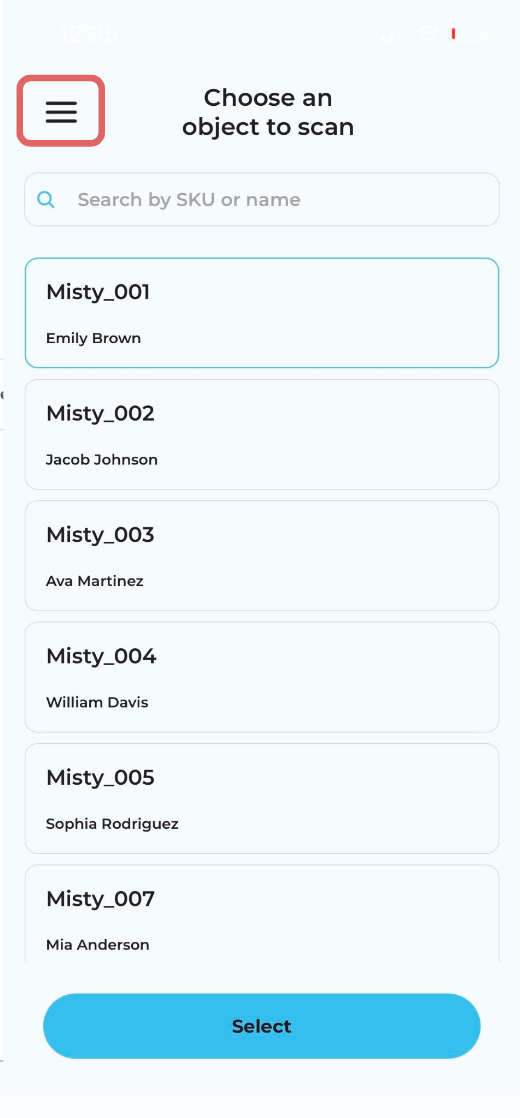
The hamburger menu button offers several functionalities, including:
* **Captures:** You can see a preview of the output for all your captures. If any capture is being uploaded, you will see a progress bar displayed here.
* **View Other's Captures:** By selecting this option, you can view all the outputs generated by other users in your organization. (This option appears only for Pro Users)
* **Community:** This section allows you to check the outputs of captures done by members of Avataar's community.
* **Tips & Tricks:** By clicking on this option, you can access suggestions provided by our experts. It contains helpful information, including do's and don'ts for using the application.
* **Bottom Capture:** If you are scanning an object that has significant details at the bottom, you can enable the 'Bottom Capture' option. This feature provides an additional flow to capture the bottom of the object.
* **Storage :** The current storage available in your device will be shown under ‘Storage’ so that you can delete unwanted details. If you have ample storage space in your device, this option will not be visible.
* **Help:** In the 'Help' section, you can access the application's documentation whenever you need assistance. Additionally, you can 'Contact Us' for support or 'Raise a Bug' under this section.
* **Delete my Account:** If you wish to delete your account on our platform, you can select the 'Delete my account' option.
* **Log Out:** To log out from the application, simply click on the 'Log Out' button.
*Important*
1. Please ensure that all ongoing uploads are completed to prevent any data loss.
2. Please remember to disable 'Bottom Capture' if you do not want to capture the bottom part of a product before initiating the scan.
# How to Use the Floor Detection Feature?
As you open the app, a gif appears to guide you on placing the ground detection marker on the floor.
Detection of the floor on which the object is kept is critical and enables bounding box placement. In this stage, a floor marker appears on the screen that can be moved adaptably over the various horizontal surfaces in the scene.
The marker (mat) has two states:
1. Detection in progress (marker takes the shape of corner angles for the initial few seconds)
2. Floor detected (marker appears like a whole mat)
To begin the process:
* face the front of the object to be captured and
* point the phone towards its base in front of the object
This should normally result in quick floor detection (the marker appears in the shape of a mat). If detection takes time (corner angles) move the phone slightly from side to side before focusing on the base of the object, to make detection easier.
*Important:*
* Surface detection works well with textured surfaces, such as a carpeted floor or a table with a textured table cloth though they should be perfectly flat and with no wrinkles or surface aberrations.
* It is best to avoid glossy and plain surfaces to place the object on. White surfaces might lead to problems with discovery.
# Bounding Box
Once the floor detection is done, a bounding box (A rectangular border around the product that you can drag to move, transform, rotate, or scale) is created automatically based on the detected floor.
# How to Resize the Bounding Box?
After the bounding box appears on the screen, a GIF appears to help you with the resizing of the bounding box.

\
Once you click on ‘Tap to Continue’, you will be provided an option of resizing the bounding box.
*Important*
1. Since floor detection can be pretty sensitive to minor details in the scene, it is advised that the user moves toward the bottom of the box to ensure that the box is indeed on the floor. If it appears to be appreciably above the floor, click on the restart button and start over.
2. For easier resizing of the box, it is preferred that the mat is placed under the centre of the object. But doing so could result in the box being slightly above the floor. Experience with capture will help the user strike a balance between placing the marker before the object outright and under its base
# How to Adjust the Bounding Box?
Once the bounding box is placed, it has to be resized to fit the object snugly, with not more than a slight bit of space around it. However, it must be ensured that no part of the object (even at the back) is left uncovered.
An example of the object not being fully covered from the side (to be strictly avoided) :
Drag on the arrows on each side of the box to adjust it’s dimensions. It is useful to walk around the object to check for uncovered areas and resize the box to ensure that it’s properly adjusted.
The best practice is to use a pinch-to-zoom gesture on the box to bring it to a reasonable size relative to the object and then use the arrows to reduce the gaps between the object and each of the box’s sides.
Before enlargement:
After enlargement:
*Important:*
* For the best results, ensure that the box surrounds the object as tightly as possible by resizing only as much as necessary
* Check by holding the phone vertically and at the right height to convince yourself that the top of the object is properly covered
* During all stages of box resizing, the box can be moved by dragging it around with a single finger, to make resizing easier
* You should use a two-finger rotation as a first step if you find the box misaligned with the object
After resizing is complete, click on the Arrow at the bottom right corner to move to the next stage.
# How to Capture the Object?
The next stage involves capturing the selected product, with the ultimate goal of obtaining the best possible outcome by covering the product from various angles. The application assists the user by providing visual markers placed around the objects. The capture process is completed when the user follows four markers at different heights, as instructed in the application (as shown in the screenshot below).
When you encounter the screen displayed below in your app, it indicates that the capture process needs to be initiated. In this step, the marker guides the user to capture the top of the product.
You need to start walking around the object, ensuring that the dome remains centered on the screen and avoid triggering the 'Move Closer!' or 'Step back!' messages. As you move around the object, the dome gradually turns green (as shown in the screenshot below).
Once the entire dome turns green, it indicates that the specific marker has been captured correctly, and the next ring will automatically appear.
After completing the top ring, gradually move the phone downwards and repeat the same process with the next ring. Finally, repeat the process with the last ring to finalize the capture. Once the dome and all the rings have been covered, the upload process will begin automatically.
Note : If you have enabled the 'Bottom Capture' option from the 'Hamburger Menu' before starting the scanning process, the app will give you an option to capture the bottom of the product. However, if you change your mind you can “skip”, else you will be redirected to the bottom scanning part within a few seconds. To expedite this process, you can click on 'Continue to bottom scanning'.
To capture the bottom of the product, turn it upside down and follow the same process of positioning the mat and bounding box. Start capturing the bottom of the product by capturing the dome. Your capture will be successfully uploaded once this step is completed.
*Important :*
* In order to get the best output, please try to maintain a steady pace while capturing.
* Throughout the capture process, if you encounter prompts such as 'Move Closer' or 'Step back', please adjust your position accordingly for the best outputs
* In case you miss a spot and a part of the dome/ring does not turn green, gently backtrack to cover it before proceeding. Until you cover all the rings, you will not be able to move to the next step.
* At any given point, you feel the capture is not going as intended, please feel free to refresh using the refresh button at the top right corner of the screen and start a fresh capture from step-1.
# How to Upload the Captured Object?
When a capture is completed, the completion screen appears and the upload starts. Ensure that you have access to a good internet connection before the upload is begun.
The app throws an error (screenshot below) if your internet connection is not strong enough. Switch to a better connection (preferably Wi-Fi) and the warning should disappear by itself.
*Important:*
* The upload happens in the background, if you start scanning another SKU after completing one, there is no limit in the number of uploads that can happen in the background.
* For a faster upload experience, the app screen should be kept open. If you minimize the app, the upload process might happen slower than usual.
* Please do not kill the app until your uploads are finished, it will pause the upload process and might lead to a failed upload
* The app automatically clears its files from the device used for capture after the upload is successful
# How to Ensure a Good Capture?
* It is important that the bottom part of the product is captured at the right height, to give the algorithm a view of the lower details of the object. For objects such as low sofas, this might mean a very low trajectory that could be difficult to manage. Use a selfie stick to considerably ease your efforts in the bottom part.
* If you are using a selfie stick for the capture, you should keep the camera attached to the selfie stick throughout the entire process and not attach it in the middle of the capture.
* Please ensure that you avoid jerking the phone as much as possible for a better output.
* Capture can be a slightly strenuous process, especially in the beginning. Ensure that you pause and take breaks between two captures to avoid straining your arms or back from working continuously.
* The app currently works in Portrait mode only.
# Release Notes
# Version 2.4
We're excited to announce a new update to Creator! This release brings several new features and improvements to enhance experience creation and animation experience.\
\
**New Features-**
**Camera Modes**
**Locked-to-Target Camera:** Focuses on and follows a specific target, ensuring smooth and uninterrupted shots. You can adjust both the camera's and the target's positions using the timeline for finer control.
**Free-Form Camera:** Allows complete control over camera movement and rotation, enabling dynamic shots from any angle. The timeline provides frame-by-frame control for precise adjustments.
**Note:** Switching between camera modes within a project may result in the loss of some animations and keyframes due to differing animation methods. To avoid this, decide on the camera mode before adding keyframes.
**Pivot Point Adjustments:**
**Edit Pivot:** Customize the pivot point of a 3D model to better suit transformation needs such as rotation, scaling, or translation. Use the shortcut (Ctrl + .) to edit a pivot point.
**Reset Pivot for All Nodes:** Reset all pivot points to their original baked in pivot points.
**Auto Keyframing**
**Auto Keyframing:** Automatically creates keyframes in the animation timeline whenever a property value is modified, eliminating the need to manually insert keyframes. Toggle auto keyframing on and off with the shortcut Shift + K.
**HDRI Settings**
**Exposure Adjustment:** Increase or decrease the HDRI’s exposure to meet your creative goals.
**HDRI Rotation:** spin the HDRI around its horizontal (X) and vertical (Y) axes for optimal scene lighting.
We hope you enjoy this update!
{% embed url="" %}
# Version 2.3
We're excited to announce a new update to Creator! This release brings several new features and improvements to enhance experience creation and animation experience.
**New Features:**\
\
**Enhanced Text Control and Animation:**
**Precision Formatting:** Take full command of your text appearance with:
* **Line Height:** Adjust the vertical space between lines for improved readability and layout flexibility.
* **Letter Spacing:** Control the horizontal space between letters for a tighter or looser look.
* **Alignment Options:** Choose from left, right, center, alignment to achieve the desired visual effect for your text blocks.
* **Case Control:** Manage your text capitalization with various options like uppercase, lowercase and title case
* **Personalize your text with a vibrant color palette.** Change font and fill colors, adjust fill and stroke opacity, and even define stroke width for a unique look.
* **Use** **list styles** for your experiences from bulleted, dashed, numbered and alphabetical lists options.
**Image Generation:**
Unleash your creativity with the all-new Generate Image feature. Whether you want a stunning background for your experience or props to create a contextual environment, simply describe your desired image in detail within the Prompt section, and our powerful AI will transform your words into a stunning visual creation.\
\
Gone are the days of spending hours scrolling through stock images when you need something specific or unique.\
\
The more specific you are, the more accurate and engaging the generated image will be. Whether you want a stunning background for your experience or props to create a contextual environment
Prepare to craft compelling experiences with captivating visuals, and bring your ideas to life with these powerful additions!\
\
We hope you enjoy this update!\
{% embed url="" %}
# Version 2.2
**Release Notes**
We're excited to announce a new update to Creator! This release brings several new features and improvements to enhance experience creation and animation experience.
**New Features:**\
\
**Enhanced Timeline Navigation:** Precise zoom controls and cursor snapping for effortless keyframe placement.
**Layer Repositioning:** Freely move layers to adjust your animation layout.
**Material Animation:** Breathe life into your projects by dynamically changing materials of the 3D models using the timeline to create transitions.
**Preserve UV:** Maintain consistent textures across complex 3D objects, even when broken down into separate parts. No more worrying about distorted textures!
**Node Animation:** Achieve granular control by animating individual parts (nodes) of your 3D objects. Animate positions, rotations, and even material properties on specific sections for intricate animations.
**Animating Lights:** Now animate light properties on the timelines using keyframes.
**Multilingual Input:** Creator now supports text input in various languages, allowing you to create content for a global audience.\
\
We hope you enjoy this update!
{% embed url="" %}
---
[Next Page](https://docs.avataar.ai/knowledge-center/llms-full.txt/1)


.gif?alt=media&token=806d9766-22ab-4b04-8fbc-ac18c5282834)


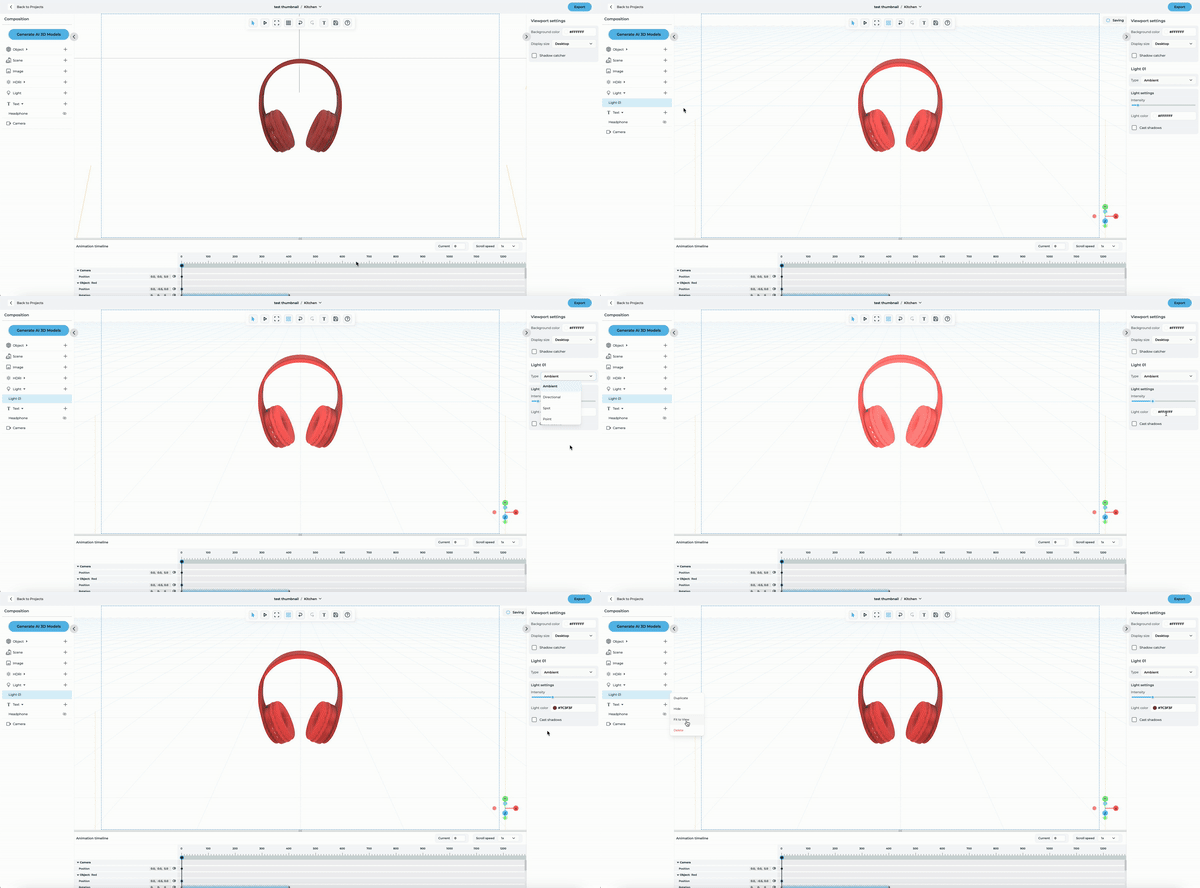


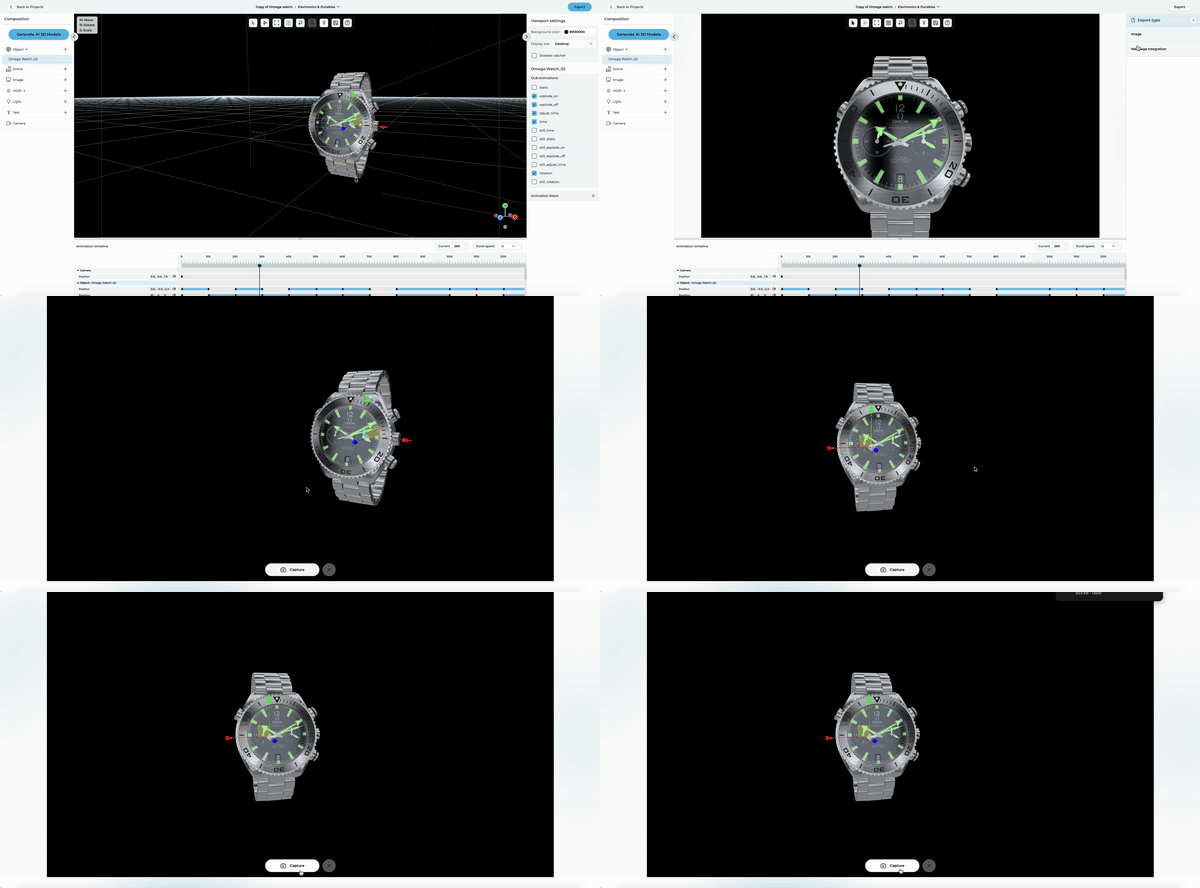
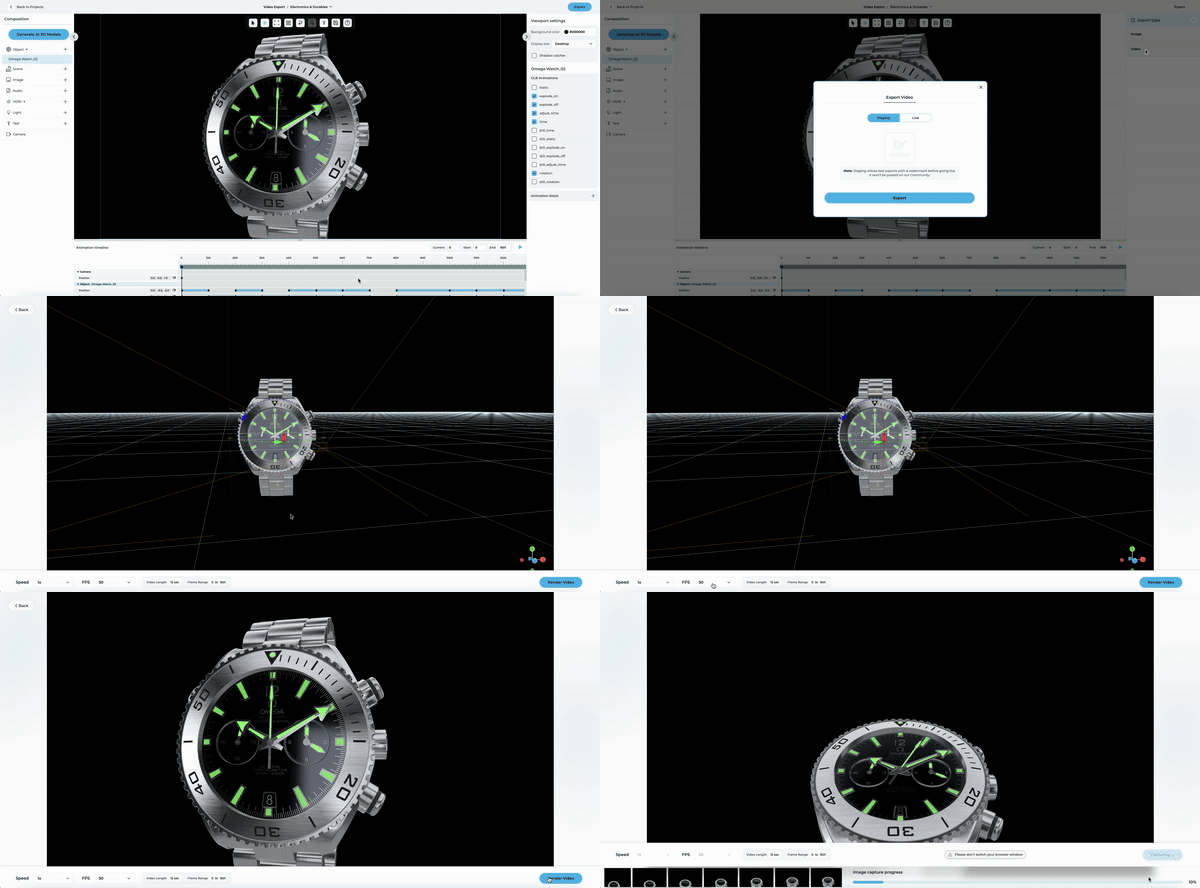
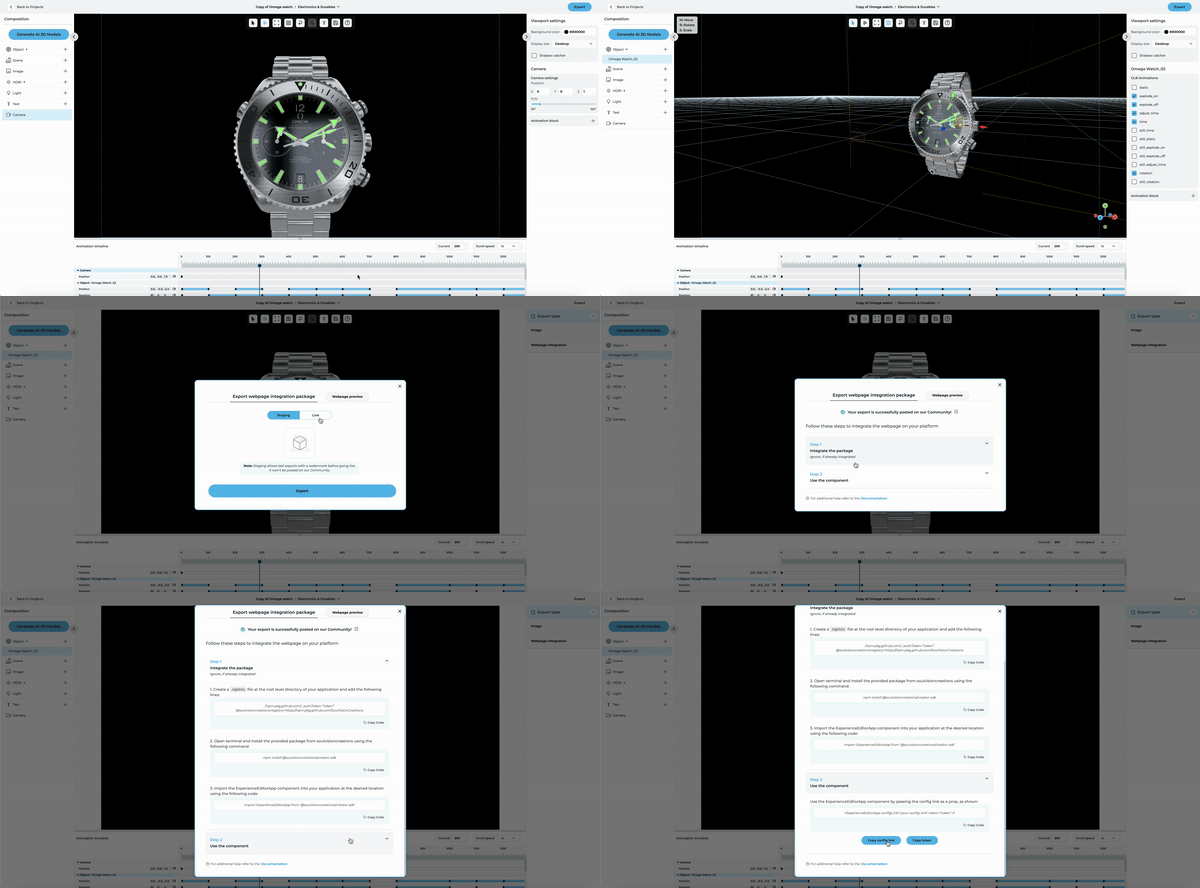
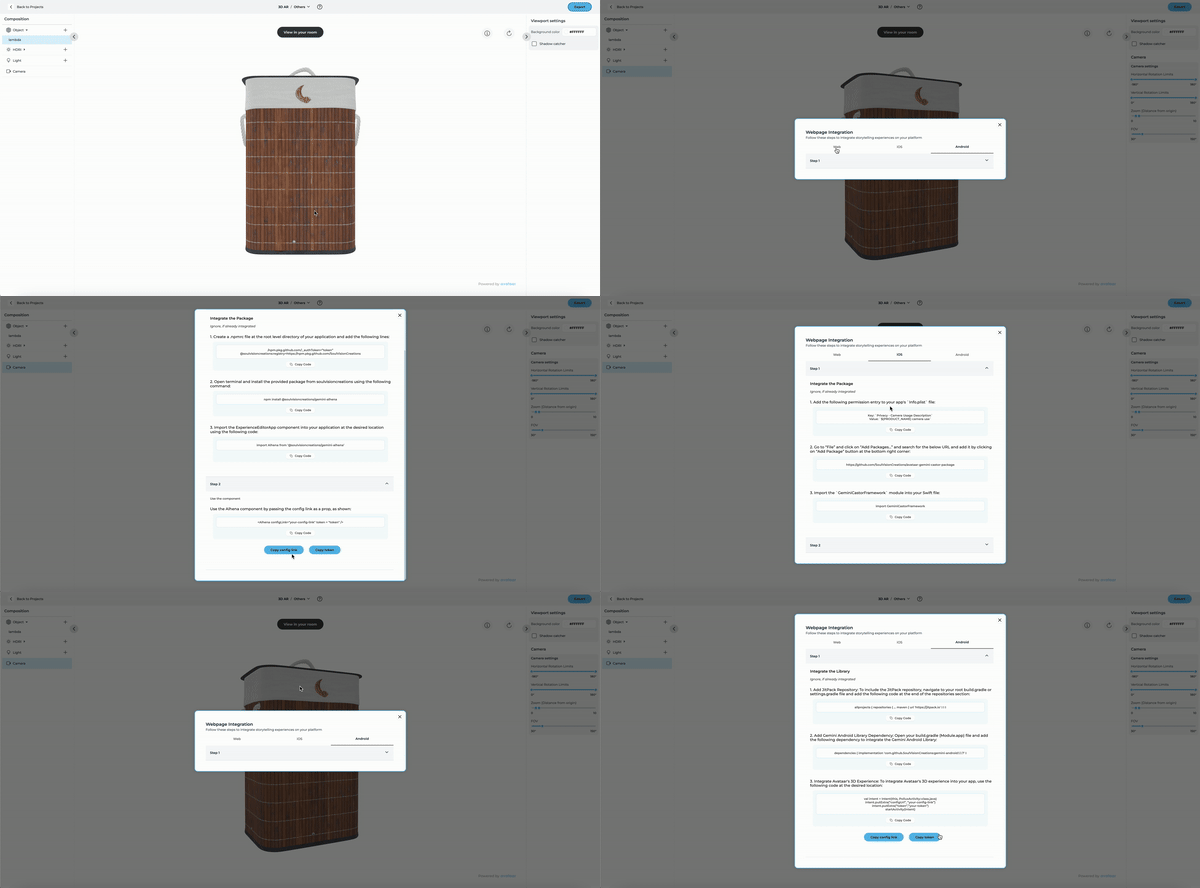

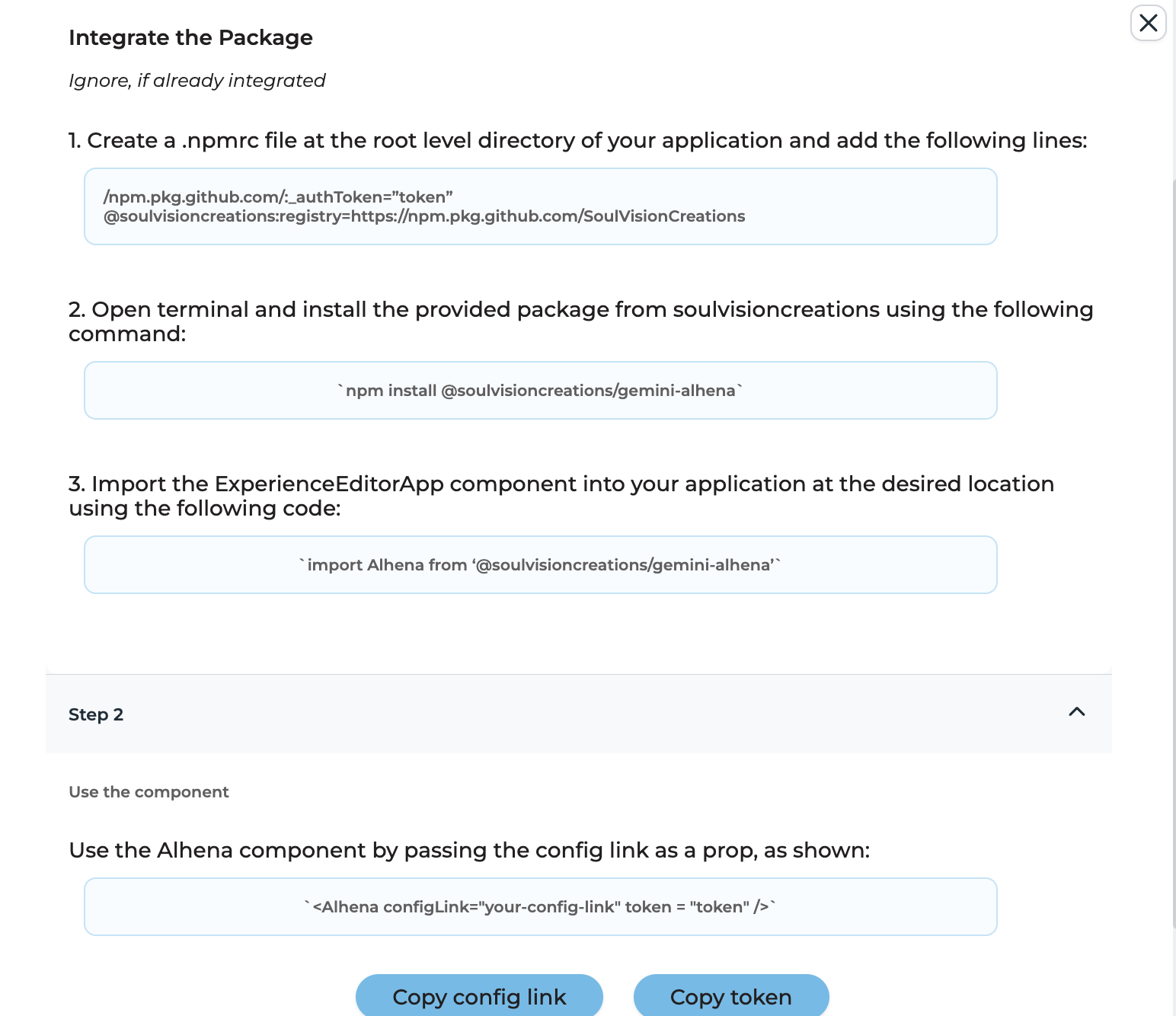
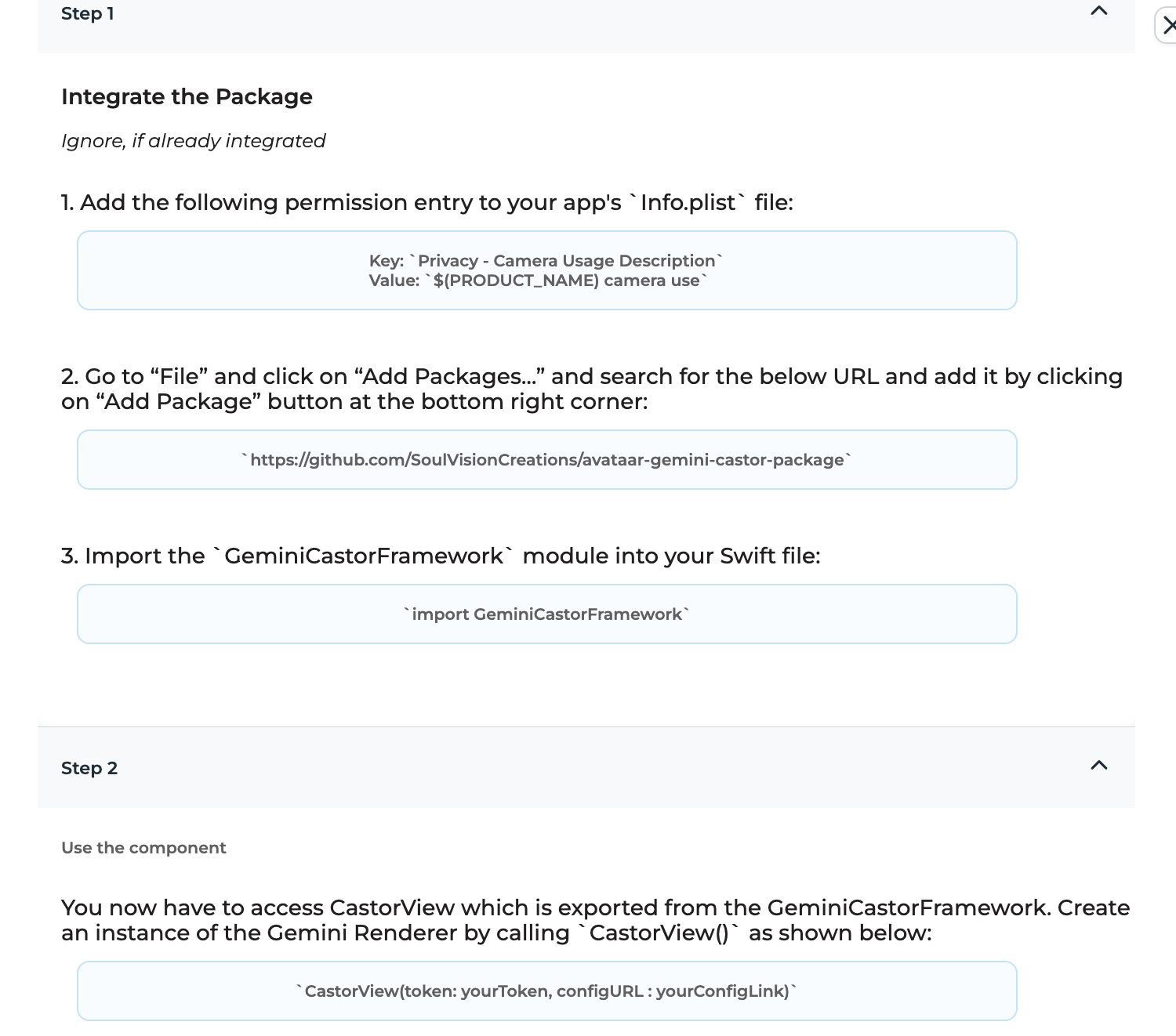
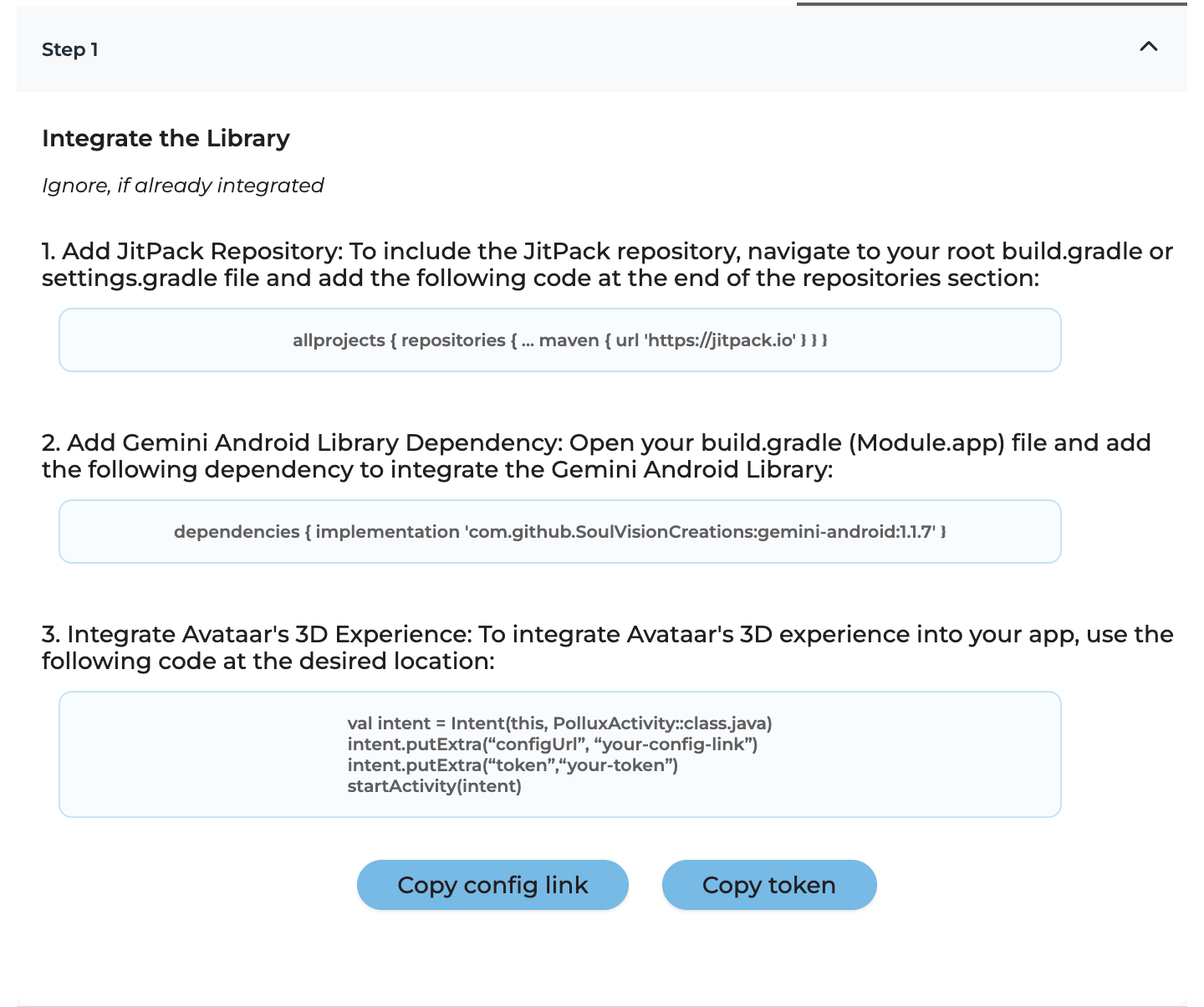


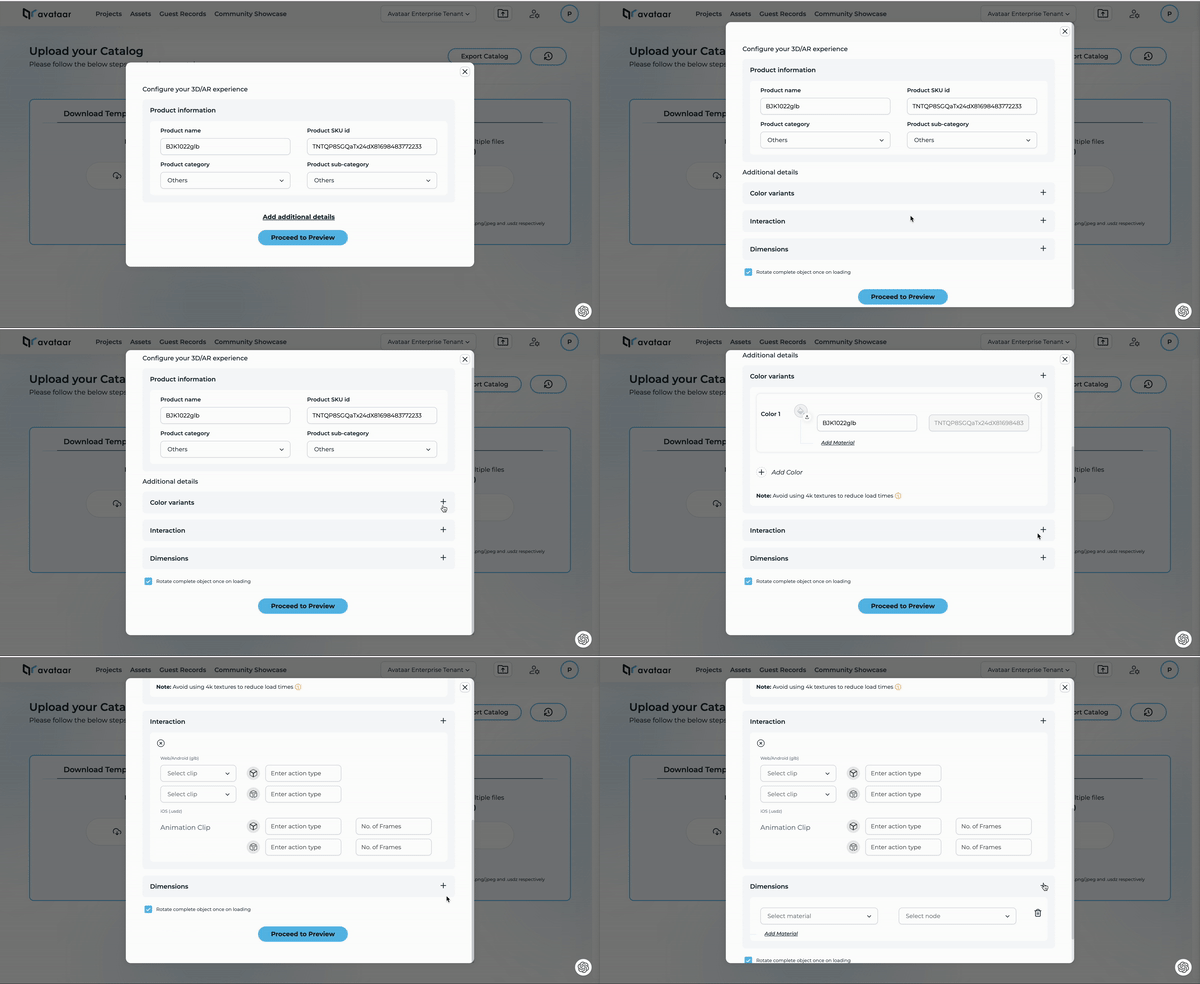

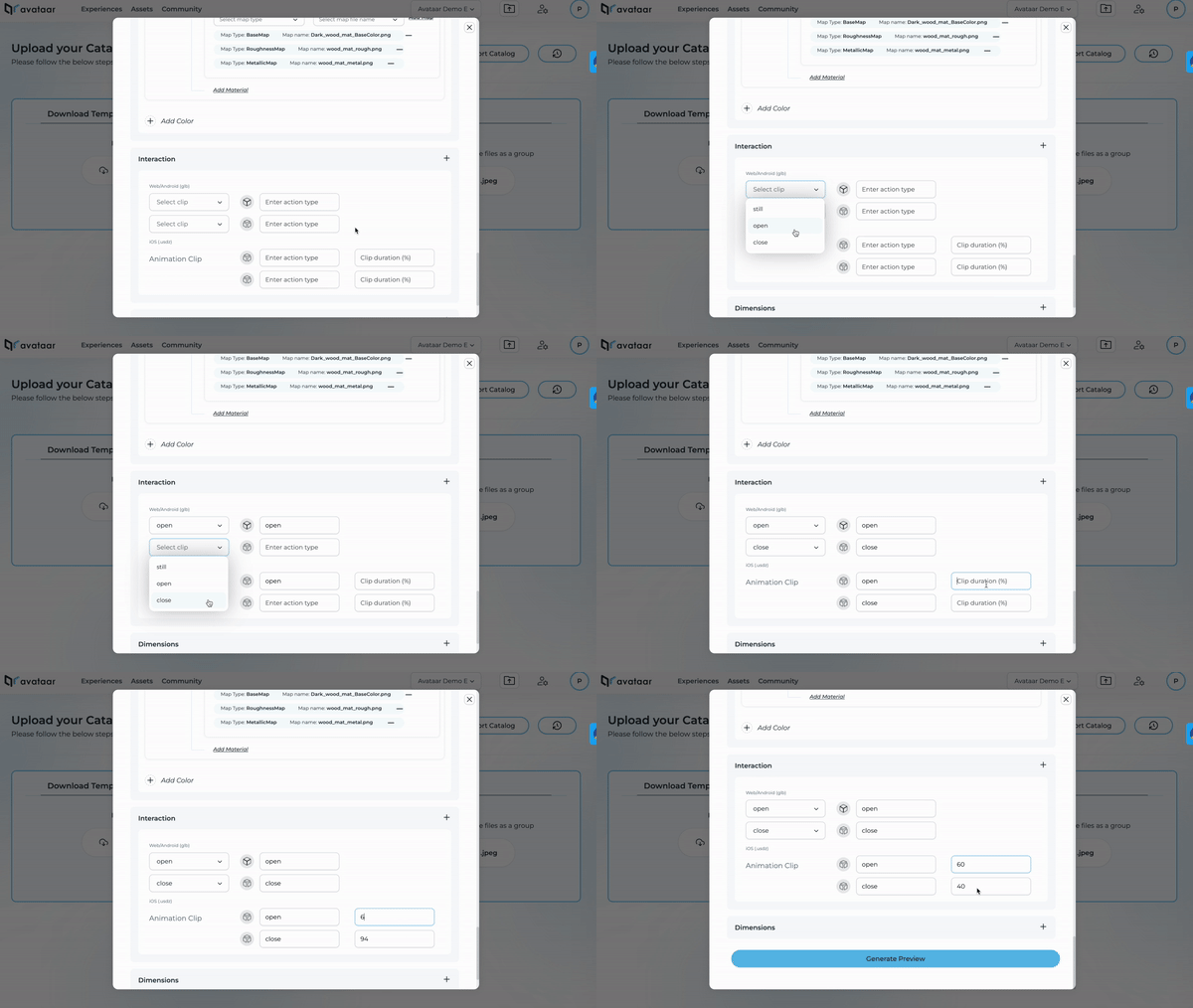
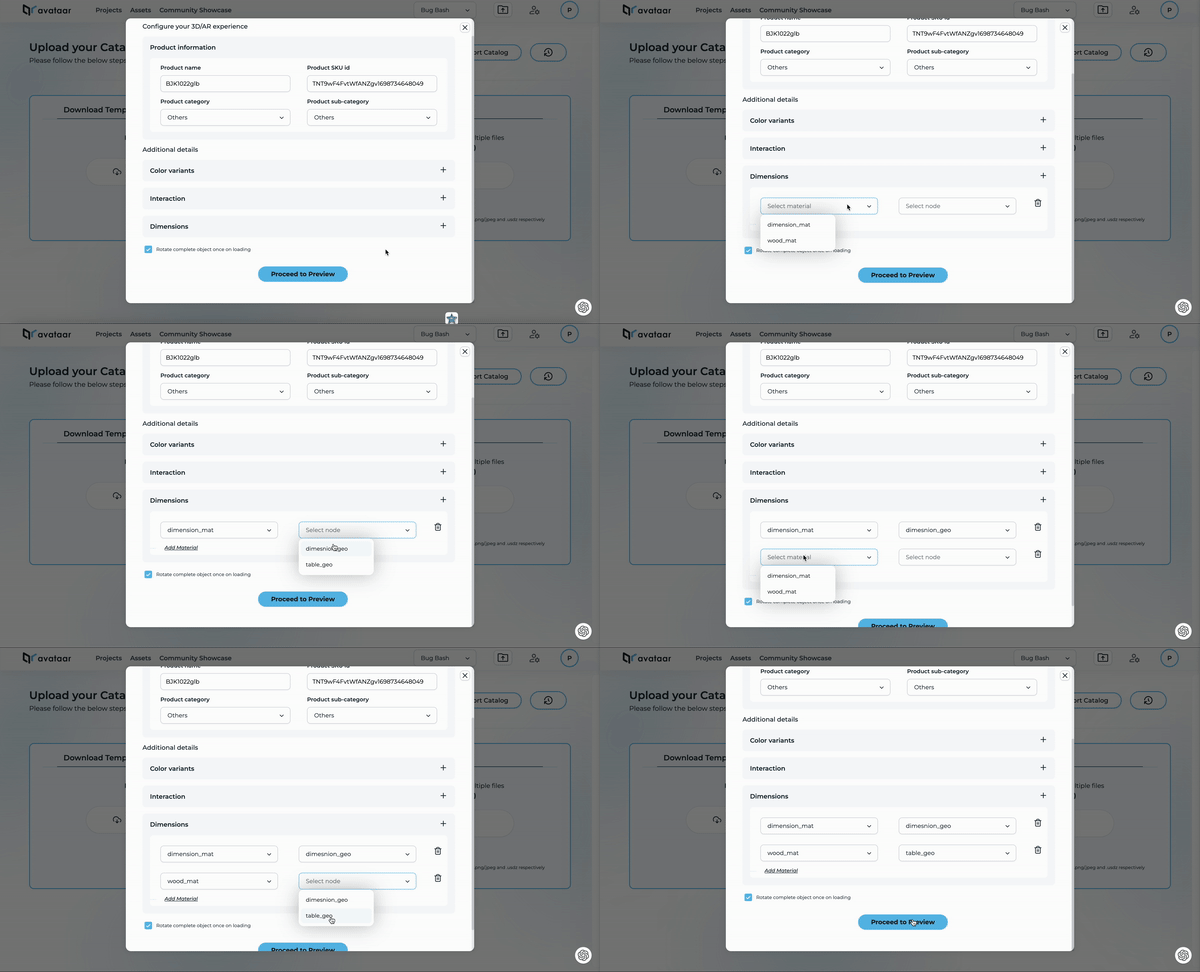


.gif)
.gif)